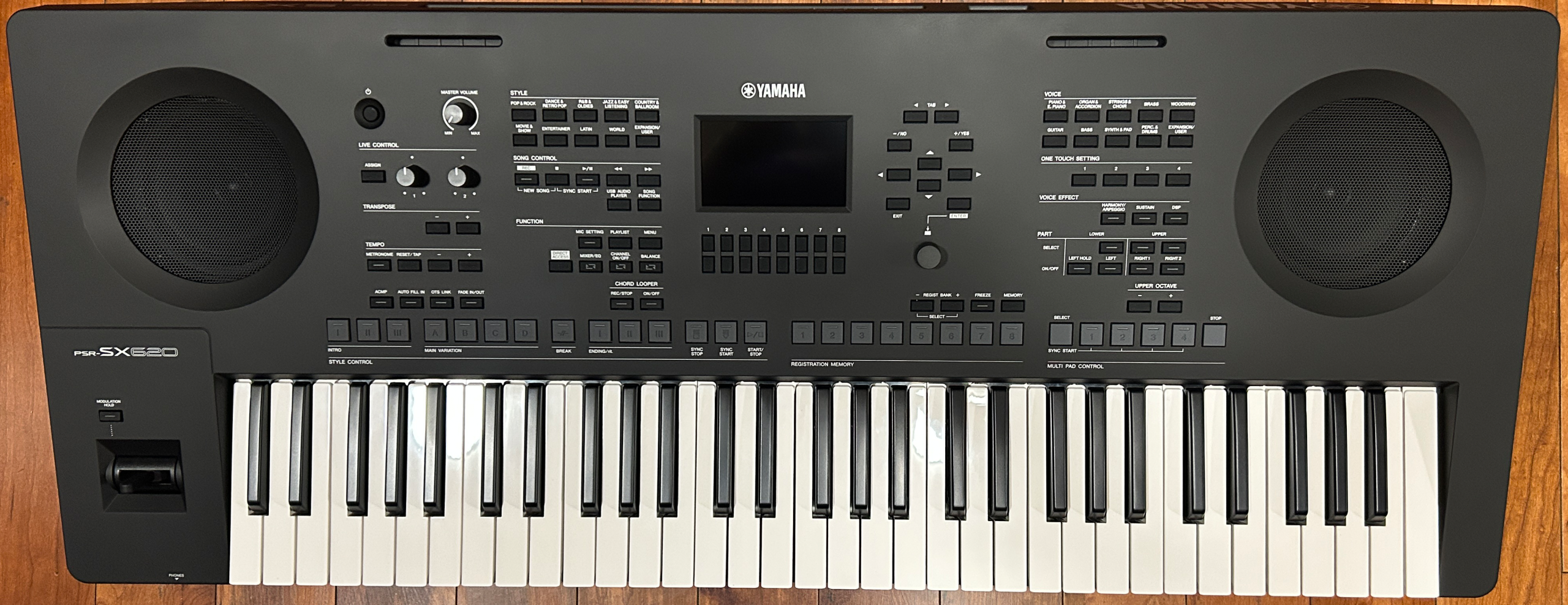
This is my IN DEPTH review AND TUTORIAL on Yamaha’s newest addition to the PSR-SX lineup of pro series arranger keyboards; the PSR-SX620, which is the long awaited (and much anticipated) new version of their entry level model to this series, replacing the super popular PSR-SX600 in the fall of 2026. I never did review (or even see to be honest) a PSR-SX600, since stores in my area don’t ever stock high end arranger keyboards. And, on the rare occasion that they do happen to have one in stock, they don’t make them available for rent. So, I have to send a HUGE thank you and shoutout to Tom Lee Music, with 5 locations in British Columbia, Canada, who agreed to bring in this PSR-SX620 for me so that I could make this review (and hopefully a couple more videos before I give it back to them). So make sure you check them out at www.tomleemusic.ca
So with all that out of the way? Let’s check out the Yamaha PSR-SX620!

So with all that out of the way? Let’s check out the Yamaha PSR-SX620!
Yamaha Arranger Lineup
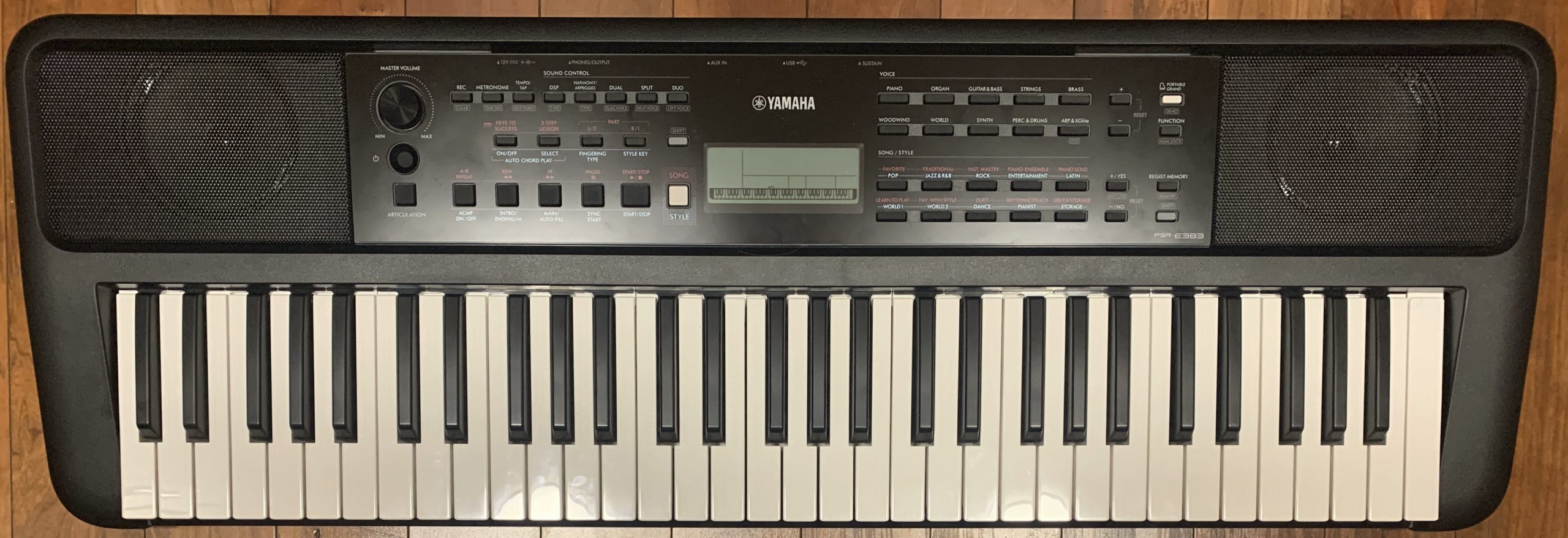
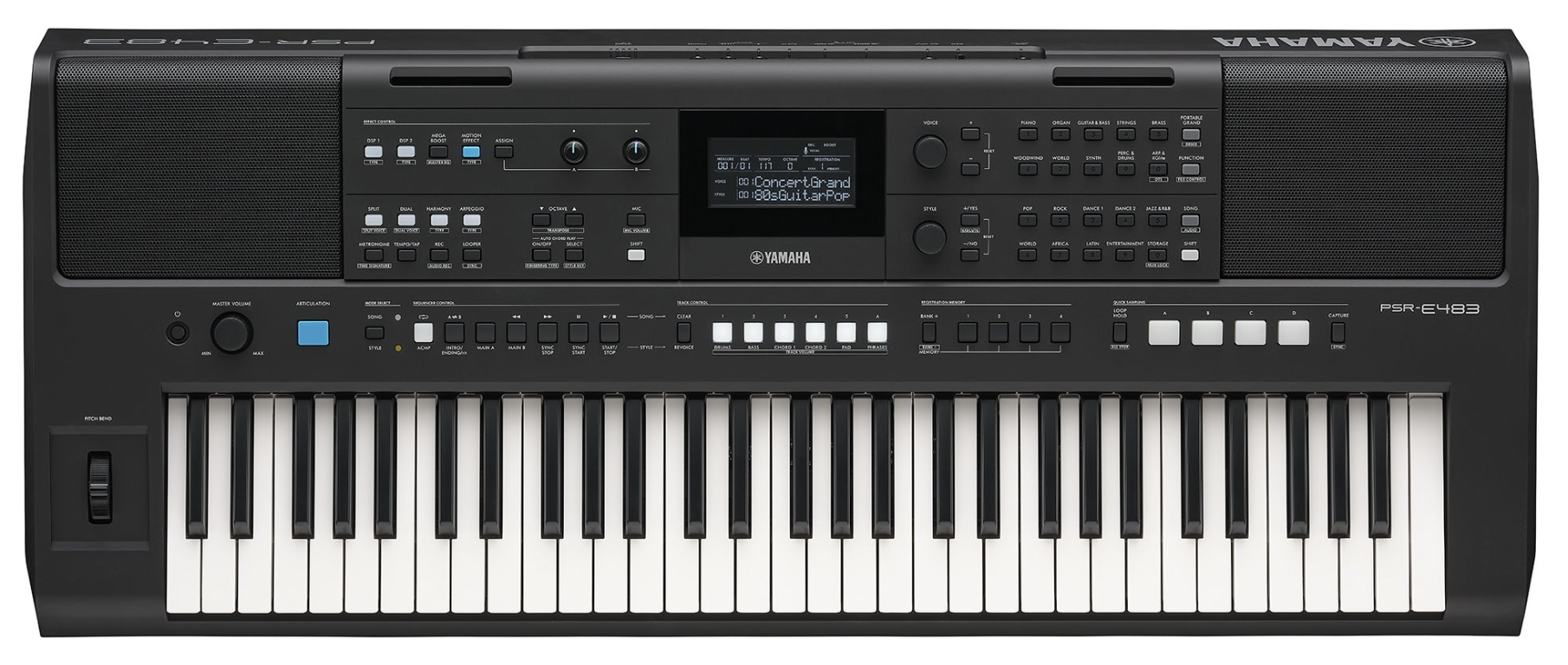
Ok so where does the PSR-SX620 fit into Yamaha’s keyboard lineup? Yamaha has 3 “tiers” of arranger keyboards; the entry level tier is the PSR-E series, so the PSR-E283, PSR-E383, PSR-E483 & PSR-E583. The PSR-E series range in price from about $160USD to $530USD.
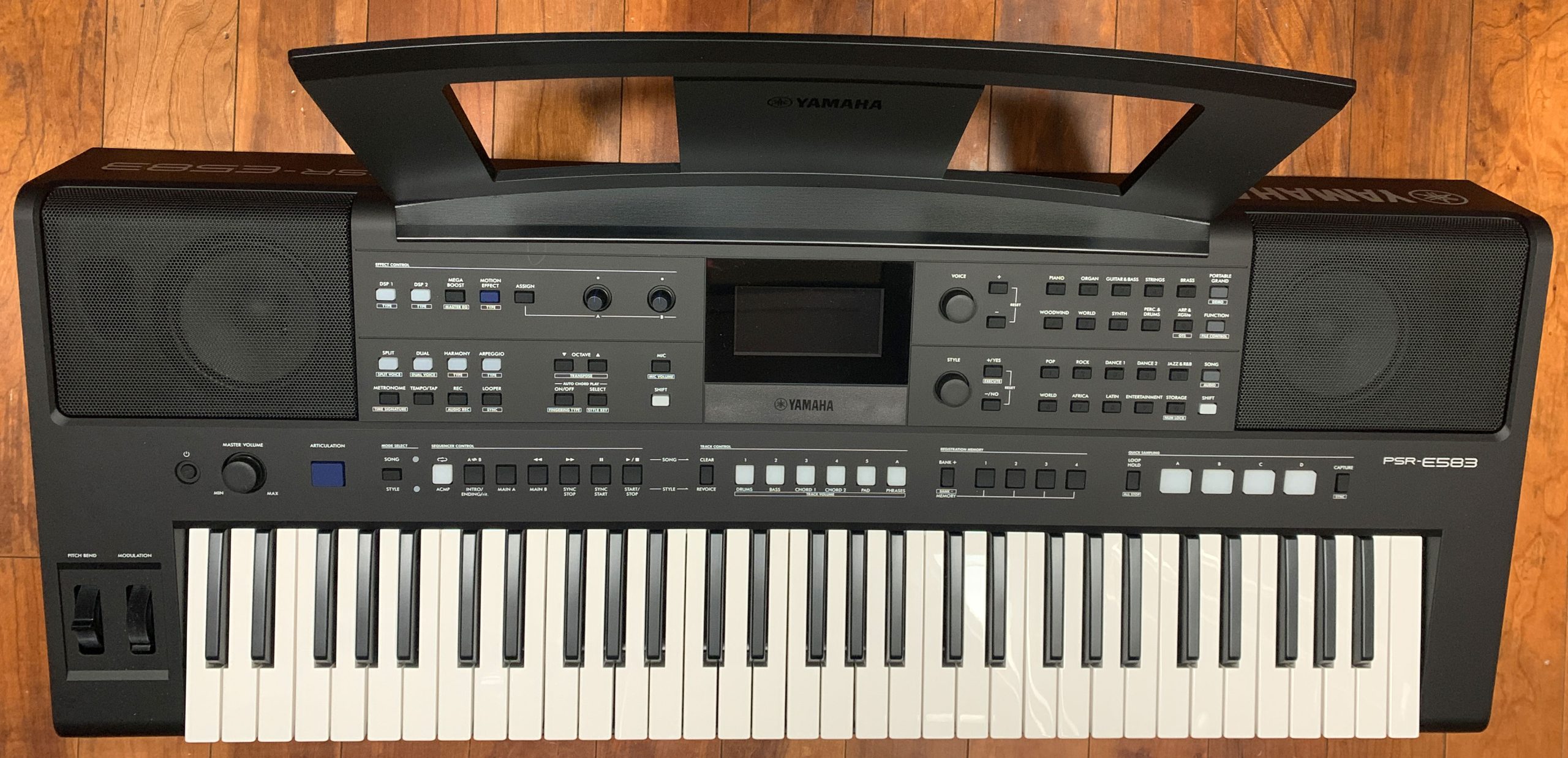
Then their “pro” level tier is the SX series: The PSR-SX620 is the new entry level SX model, selling for about $1250 USD (which IS up from the SX600 which I last saw selling for about $1100 USD). Then the mid range model, the PSR-SX720 PLUS sells for about $1800 USD; I’ve actually owned the prior PSR-SX720 model for over a year; my model sold for about $1600 USD; the SX720+ is the exact same keyboard only it added Bluetooth audio, and the price did jump by $200 USD. Then the top of the line SX model is the PSR-SX920, which sells for $2600 USD.


Then the top tier of Yamaha’s arranger lines is their Genos series – the Geno2 sells for a whopping $6800USD!

Key Action
The PSR-SX620 uses Yamaha’s “Organ” action, which is the same action, keys and keybed found on the much less expensive PSR-E series, BUT just like its predecessor, the SX600, the SX620’s version of that action has been upgraded with what Yamaha calls “Initial Touch”. The PSR-SX720 that I’ve owned (and used a LOT) over the past year and a half also has “Initial Touch”, but the SX720’s base action is already upgraded from the “Organ” action to the FSB (“Future System Basic”) action, so I’ve been super curious as to whether or not the addition of Initial Touch to the E series Organ action would be a noticeable upgrade in key feel over my PSR-E583 (which I’ve also owned for about a year).
“Initial Touch” adds a slightly heavier initial resistance, which is intended to enhance your ability to control your dynamics; even though none of the PSR keybeds are weighted, I’ve always found playing piano pieces expressively, without losing control of my dynamics, is MUCH easier on my PSR-SX720 than on my PSR-E583. But until I was able to try out an SX620, I wasn’t sure whether that was from the Initial Touch feature, or just the fact that the FSB action is a big upgrade over the plain Organ action. Well after spending some time with the PSR-SX620 and comparing it directly to my PSR-E583, what do I think of the action on the PSR-SX620?
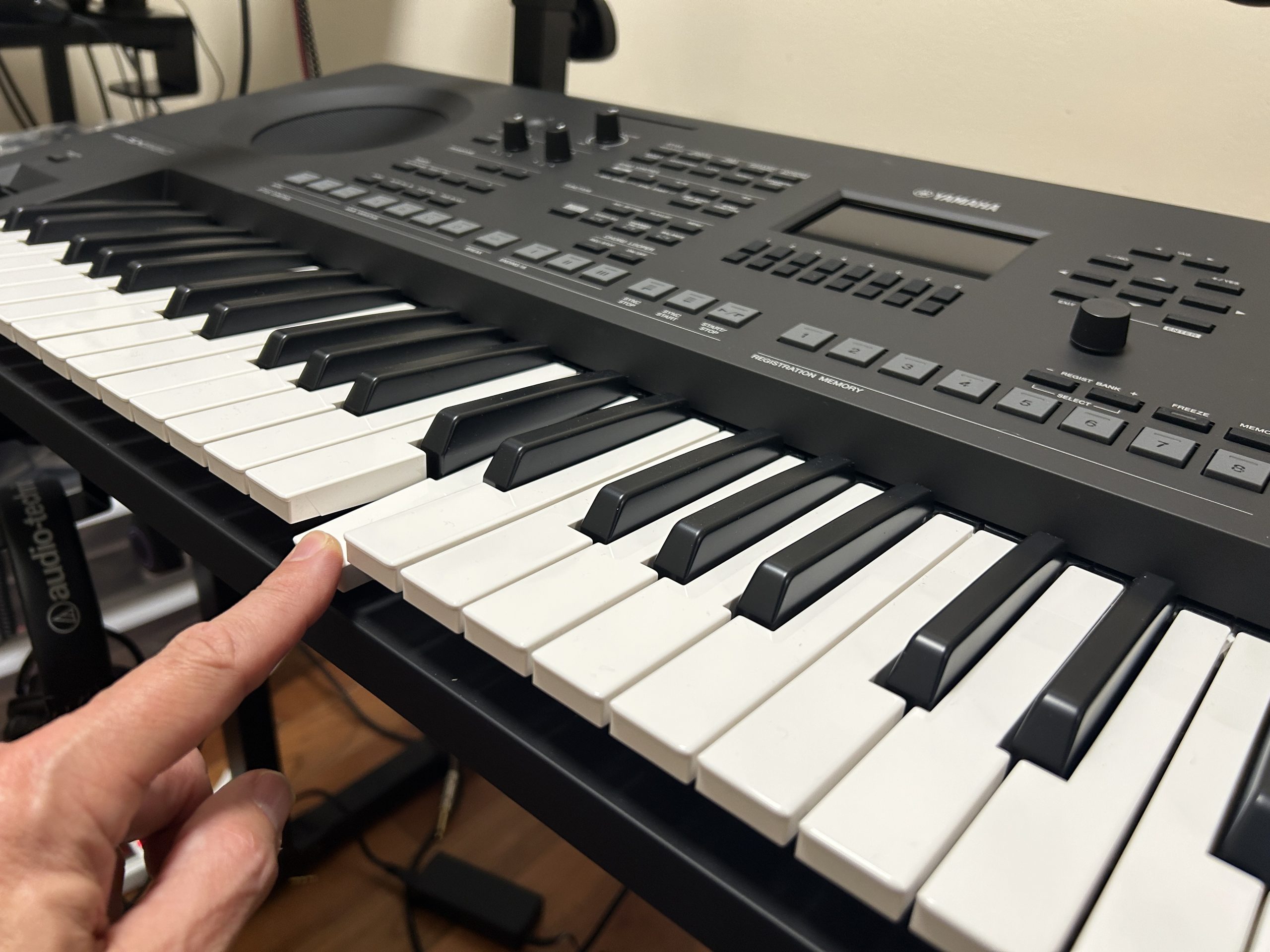
The PSR-SX620’s action WITH “Initial Touch” is DEFINITELY an upgrade on the same action from the PSR-E series that does NOT have initial touch. It can be a bit subtle and hard to notice at first, but it is DEFINITELY there. When I first unboxed the SX620 and compared the keys, keybed and key action to my PSR-E583, it was clear that the keys themselves are EXACTLY the same (they’re not QUITE as nice of a material or finish as the keys on my PSR-SX720, and they don’t feel QUITE as solidly built). And while I COULD feel a difference in the initial resistance . . . it was REALLY slight. But . . . after playing a bunch of piano pieces back and forth on the SX620 & E583, the difference became more and more noticeable. The best way I can describe it is when I play a piano piece and try to vary my dynamics back and forth during the song, with the PSR-E583 I OFTEN get notes that are louder or softer than . . . I want that catch me off guard; but with the SX620, I seem to always get the level of dynamics that I expect. The Initial Touch feature is basically making it easier to maintain control over my dynamics than it is on the PSR-E583; it just feels way more consistent and easier to play.
Now I do need to be clear here, that while the initial touch feature does make the key action on the SX620 an upgrade on the PSR-E583, it is still NOT as nice a keybed as what you get on the PSR-SX720 or SX920. The FSB action on those keyboards is still a noticeable step up in overall feel, finish and build quality, but . . . that’s a big part of the price difference. So my overall verdict on the key action on the PSR-SX620? For a non weighted synth action, it’s actually pretty good and a definite step up on the PSR-E series. The initial touch feature does help you control your dynamics for piano pieces, and the non weighted feel is good for organ or synth, and great for non keyboard voices like guitars, strings and horns etc.
The User Interface
The user interface on the PSR-SX620 is really good; there’s a ton of direct access buttons, a colour screen (it is a bit small, but it displays a lot of context sensitive & useful information). And there are also context sensitive buttons below the screen that work with whatever is indicated on the display at the time. It should be noted though, that the user interface and workflow on the PSR-SX620 is TOTALLY different than the PSR-SX720 & SX920. Those more expensive models have a much larger TOUCH screen, and a totally different workflow that is inherited from the top of the line Genos models (that sell for over $6000 USD!); and after owning an SX720 for over a year I have to say it’s probably the best keyboard user interface I’ve ever encountered. As soon as I started working with the SX620, it was immediately clear that the screen, user interface and workflow are VERY close to the Yamaha DGX-670 that I owned for about a year. That doesn’t mean it’s a BAD user interface . . . it’s not, it’s really good; but it’s nothing like the more expensive models.
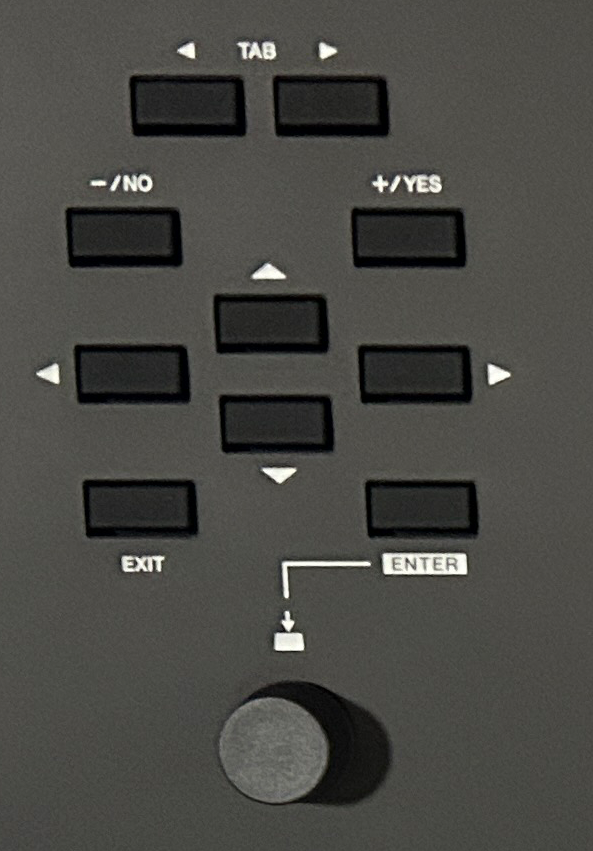
The overall navigation system is pretty straight forward – to the right of the menu screen there are controls to move between tabs at the top of the screen, buttons to indicate yes or no, then 4 way navigation arrows, and an EXIT button to leave a screen (or drill back up in a menu tree) and an ENTER button to make a choice, or drill DOWN in a menu tree. And then there’s a knob which you can rotate to make selections instead of using the arrows; and what I’m assuming is a pretty handy NEW feature on the SX620 from its predecessor – you can now push down on the knob to make a selection (ANYWHERE in the menu system) instead of pressing ENTER (I never used an SX600, but it has a dial instead of a knob, so I’m assuming this push button knob option is new).
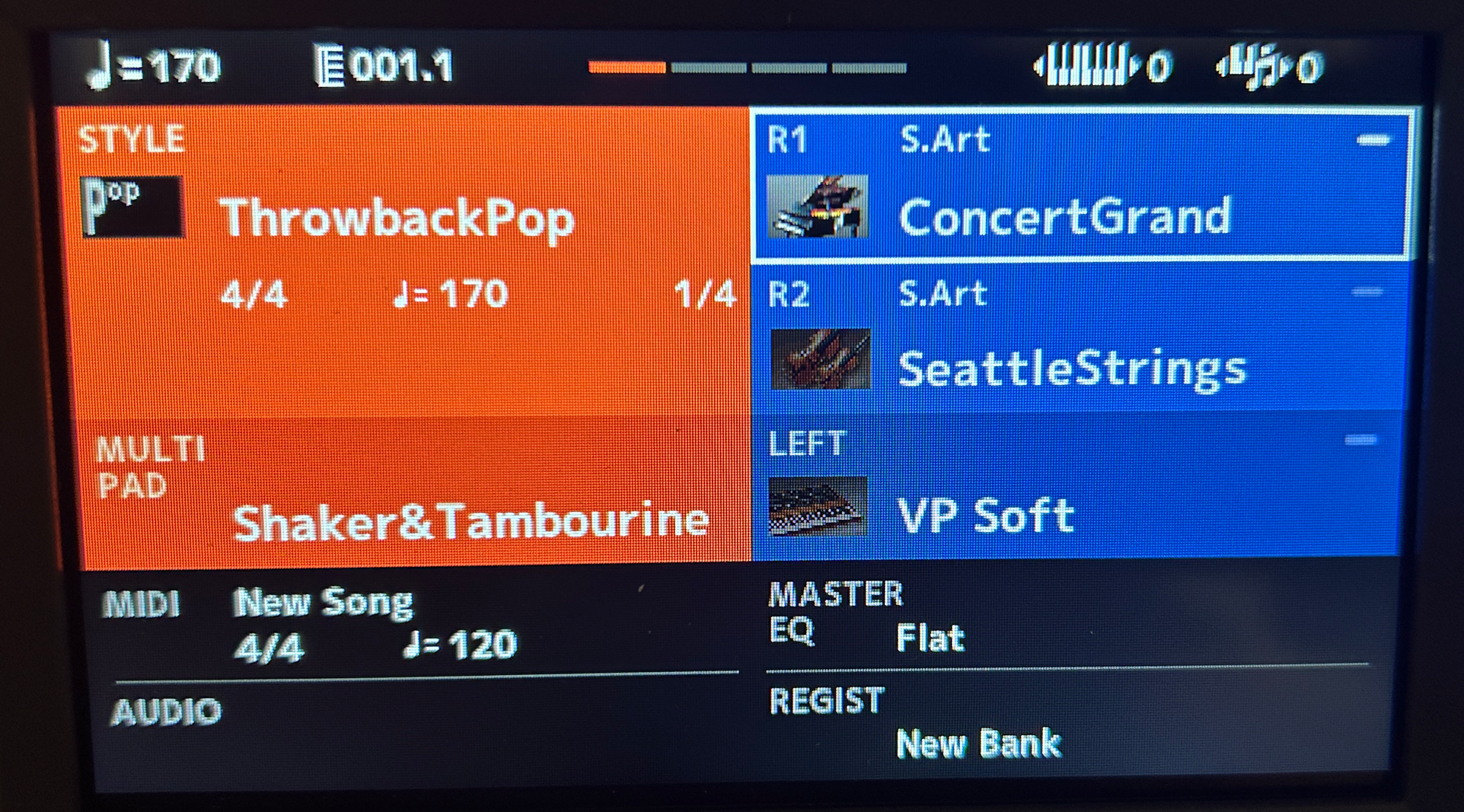
And while the screen is a bit on the small side, it is super clear and really easy to read; it does appear to be the same screen specs as the prior model. The main screen has the tempo in the top left, when you’re using accompaniment or the metronome you’ll see measures count up on the top, and the beats are shown with cool kind of scrolling lit indicators. Then there are indicators for both the current transpose and octave shift settings. The main screen area shows the current style and multi-pad info on the left side, and your 3 current voice selections (right1, right2 and left) whether they’re active or not (when they’re inactive they’re greyed out on screen – it is actually easiest to see this status just by glancing at the orange indicator lights on the voice buttons themselves). Then the bottom section of the screen shows the current MIDI and AUDIO songs, your master EQ setting and your current registration memory selection.
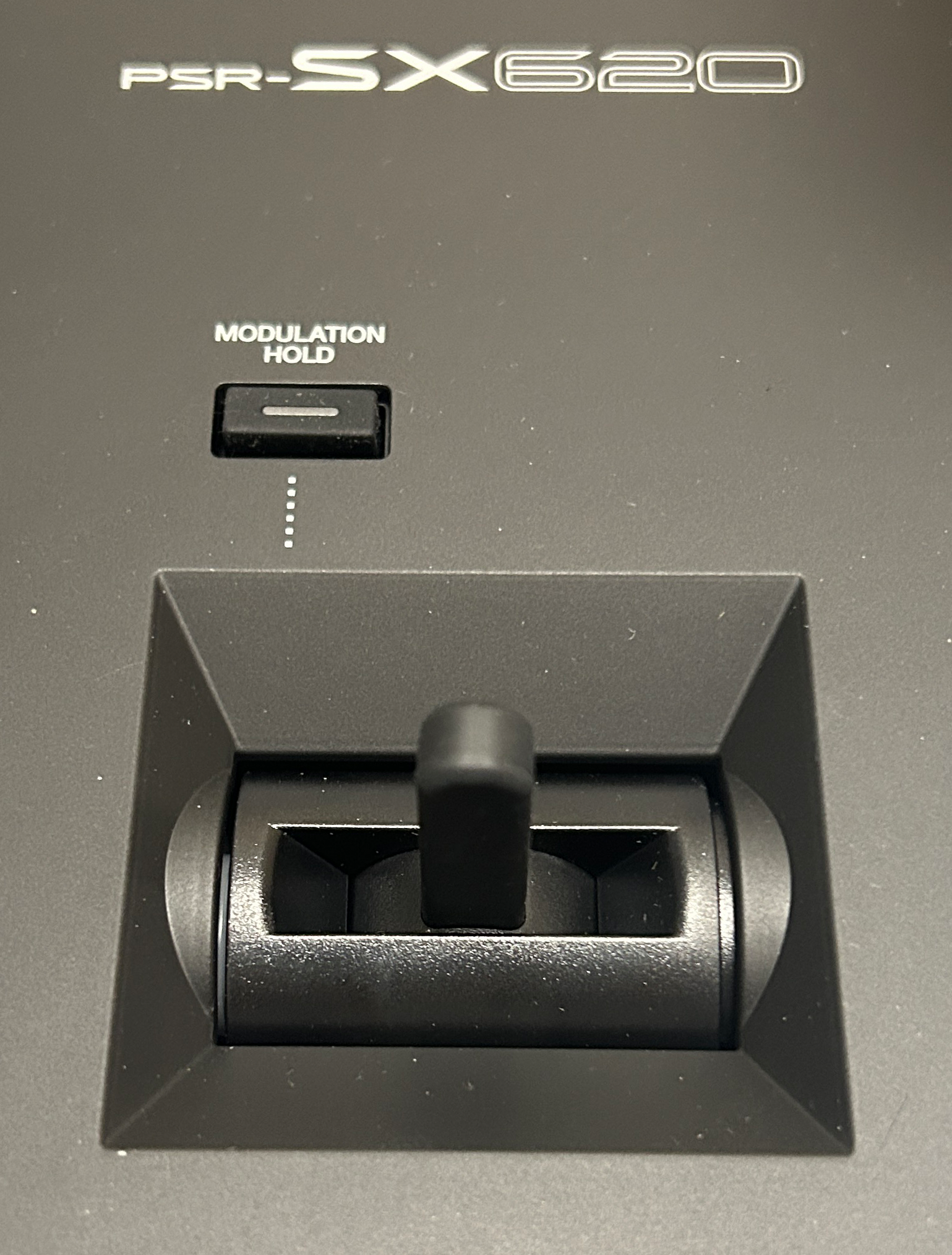
Something noteworthy to mention is that the pitch bend and mod wheels on the prior model have been replaced with a single 2 way joystick; this is what my SX720 has, and I use it a fair bit playing live and I have to say – I much prefer the joystick over wheels.
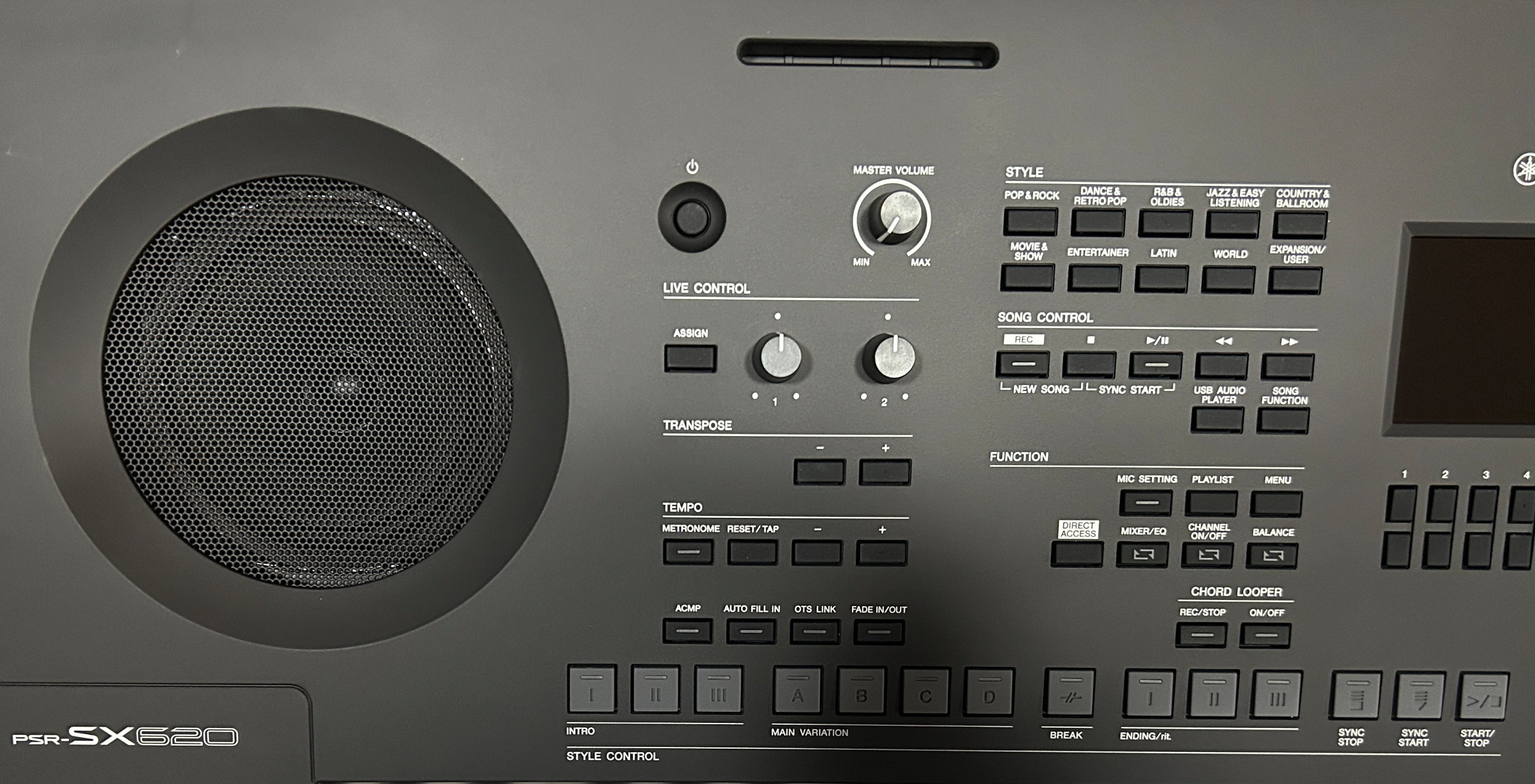
The general layout of the front panel is pretty intuitive and straightforward; the left side has your on/off and master volume, 2 assignable live control knobs, handy buttons for transposing, then buttons for controlling your tempo (which you can tap to set), metronome, and all the buttons for working with your styles (which I’ll be going over later in the review). Then just to the left of the screen we have buttons for navigating through styles, controlling MIDI and audio playback and recording, then a Function section that includes settings for the mic, access to registration playlists, and a MENU button for accessing the SX620’s main menu tree. This menu has multiple tabs, and all the usual function level menu trees for adjusting tons of settings, as well as general utility and global level setup stuff (you’ll be spending a fair bit of time in here).
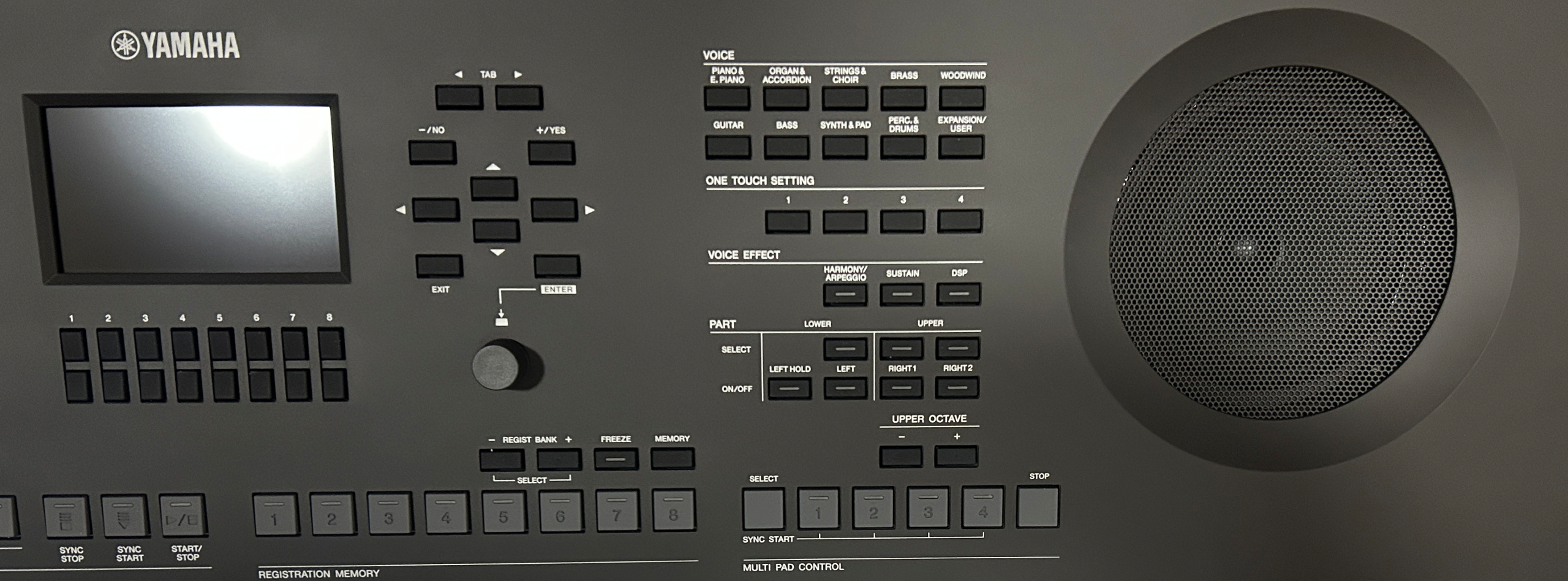
Then also in that section, we have one of my favorite and most useful buttons (my DGX-670 also had this); the DIRECT ACCESS button. This button helps you find the right place in all the various menu trees – you press the button then press another button that has “something to do” with what you’re looking for, and the SX620 will take you to a menu somewhere within the system that is MOST LIKELY exactly what you need. You can even press it and then press a pedal to take you to the pedal configuration screen; super helpful! Then we have the MIXER button which opens up the mixer menu for adjusting relative volumes, effects, EQ and more for your voices, style etc. And something to note here regarding navigation – there’s kind of a “sub” set of tabs; these are indicated with a rectangle composed of 2 arrows. To navigate between these “sub tabs” you press the MIXER button (which also has that icon on it) repeatedly. Beside that button we have buttons for turning channels on or off and adjusting balance; these 2 also initiate “sub tabs” so they also have that icon on them to indicate you press those to cycle through THEIR sub tabs. Then below those we have buttons for working through the Chord Looper (which I’ll be going over later on in this review).
Below the screen we’ve got context sensitive buttons that can be used to speed up navigation for whatever is displayed; what these buttons do depends on the current screen, and will be displayed at the bottom (for example when choosing voices, the top row allows you to page through the available choices, and some of the bottom row allow you to jump to effects settings etc).
On the right side of the front panel (below the navigation section), we’ve got the registration memory buttons (I’ll be going through this later in the review as well). On the top right we have the voice category selection buttons, one touch setting buttons, and then buttons for enabling or disabling harmony/arpeggio, sustain and DSP effects. Then below that we have voice part buttons for selecting them and turning them on or off; and below that we have octave +/- buttons and buttons for triggering the multi-pads.
So overall, this user interface is REALLY good; and while it is similar to and shares alot of the general workflow as the user interface on the DGX-670, in my opinion it is noticeably more intuitive and easier to get around in than I remember my DGX being (especially in terms of the registration memory system, which was REALLY confusing on the DGX but is REALLY straightforward and a LOT more robust on the SX620).
The Voices
OK so now let’s talk about the 1533 voices and 128 notes of polyphony on the Yamaha PSR-SX620, which is an increase of 160 voices from the PSR-SX600. The sound source on the SX620 is AWM Stereo sampling, and those voices are composed of 1,002 “main” Voices + 51 Drum/SFX Kits + 480 XG Voices. The main voices include 137 Super Articulation, 34 Mega Voices, 31 Sweet!, 74 Cool! & 89 Live! voices. So what do all these fancy voice categories mean?
- The “Sweet”, “Cool” and “Live” voices use advanced sampling and most often have DSP effects built into them; many of the electric pianos and sampled organ voices use this technology
- Super Articulation voices have had “expressive nuances” added to the samples to create a more realistic sounding instrument; some of these will ALSO have variations of the voice that you can manually trigger by how you play the keyboard or with an assigned pedal
- Mega Voices are actually not intended to be used live; that’s because with Mega Voices, you actually get a different sample depending on your velocity (so that would be impossible to use live). These voices are used by the accompaniment styles; you can mess around with them if you accompany them with some arpeggios etc, but not something I’m likely to bother with, and FYI you won’t actually even SEE these in the main voice selection lists, you have to go looking for them
- XG voices are a bank of general MIDI compliant voices that can be used live if you like, but are mostly intended for use playing back MIDI files (so if a MIDI file specifies a certain piano voice; you’ll get it). You may also find some useful “extra” or unique voices if you browse through all of these; one thing to note here is the XG voices on the PSR-SX620 are CONSIDERABLY higher quality than the equivalent voices on the PSR-E series, which use “XG Lite” technology instead of XG.
So apart from all that “technical jargon” on the voices; how good are they, and how do they compare to the prior model and the more expensive models in the PSR-SX line? To be honest, there has been a pretty significant upgrade in this model that’s a bit surprising (at least to me) but is REALLY cool. And it’s got nothing to do with the fact that there are 160 MORE voices (to me, when there’s already over 1,000 that’s not something I really care much about), but what it DOES have to do with is the QUALITY of some of the most used voices. There has been an increase of 64 Super Articulation voices on the PSR-SX620 over the PSR-SX600; and the REALLY cool thing about that is these aren’t all “obscure” horns or strings; in the piano and electric piano category alone, the PSR-SX600 had ONE super articulation voice; the PSR-SX620 has TWELVE super articulation voices in that category, including the 5 main piano voices! The prior model used Live! versions of those voices (which are the same ones used on the PSR-E series); the SX620 has replaced those with Super Articulation versions, so now the PSR-SX620 has a LOT of common voices with the more expensive PSR-SX720 model, including the main piano voice which is the Super Articulation Concert Grand.
As far as organ voices go, the SX620 has alot of the same sampled main organ voices found on the SX600 and on the SX720. These main ones are Super Articulation voices so they are a significant upgrade on the organ voices from the PSR-E series, but it IS important to note that these ARE pre-sampled organ voices; the SX620 (like the SX600) does NOT have an actual organ engine, which the PSR-SX720 DOES have in the form of the AWM Organ Flute voices. So the SX620 does NOT have on screen drawbars that allow you to change your organ sound on the fly like the SX720 has. Since I play a LOT of hammond organ, that was one of the main reasons I chose an SX720 over an SX600 when I was shopping. But that being said, if you only play organ occasionally? You’ll be TOTALLY fine with the sampled options on the SX620; there are a lot of common organ samples included that have unique and common drawbar settings, so you should be able to find what you need. And, you CAN add a rotary speaker effect to these voices and even trigger that with a pedal if you like (I’m planning on a video on how to do just that so stay tuned to my channel).
Ok so that’s enough talking, let’s take a quick listen to all 1533 voices . . . OK just kidding – I’ll pick a few bread and butter sounds for this demo 🙂
So what did you think of the sounds on the PSR-SX620? I have to say, I’m pretty impressed with these (and kind of surprised the SX620 now has so many common voices with the SX720. The only thing missing (at least for me) is the organ flutes engine, but that would just drive up the price, so for those that can get away with the presampled organs it makes sense to keep the price down. As far as the OTHER voices, one thing that Yamaha has always done better than the competition (at least in my opinion) are the “extra” sounds for other instruments like horns, woodwinds, guitars etc. Those sounds are really good even on my Yamaha PSR-E383, but those sounds on the PSR-SX620 are a massive step up and sound amazing. Those sounds have been super useful for me (with my SX720) in my new band when I need to cover an extra instrument, even electric guitars which I do a fair bit; they sound surprisingly realistic.
Splits & Layers
For splits and layers, we have 2 right (or “upper”) voices, and one left (or “lower”) voice. To choose a voice for these, you press the top button for the voice part and then use the categories and menu to navigate to the voice you want. Then to enable or disable that voice part, just use the bottom button; when the voice is enabled there will be a bright orange light indicator on the button; when it’s disabled the light goes out and that voice part is greyed out on the menu screen. So you can have one or 2 voices layered across the keyboard, or you can add a left voice to the left half (and have 1 or 2 voices on the right) and you can adjust the split point between the left and right by pressing MENU and drilling down into the SPLIT POINT/CHORD FINGERING submenu.
Harmony & Arpeggios
For harmony and arpeggios, there are a LOT to choose from. To access these, you can either press MENU then choose HARMONY / ARPEGGIO or you could press the DIRECT ACCESS button and then the HARMONY/ARPEGGIO button on the right. Then you can navigate through a massive list of harmony and arpeggio categories on the left, and then choose one of the types within that category on the right. Once you’ve made a choice, you can then use a context sensitive button below the screen to drill down into some detailed settings like speed and velocity; but more notably you can also choose what voice part or parts to apply the harmony or arpeggio to (Auto, Multi or just Right1 or Right2). Now that I’m in a pop rock band and playing lots of synth, I’m starting to use these a bunch on my PSR-SX720 and they’re super handy to have. The one I use by FAR the most is a 1+5 harmony (which allows you to play a power chord just with the root note) when I need to cover a second electric guitar part in a song. For example, if I was to choose an electric guitar voice, and the 1+5 harmony (and apply it to RIGHT1); if harmony is disabled and I play a C & a G (which is a 1+5 C power chord) it will sound the same as if I enable harmony and just press a C note.
Voice Editing
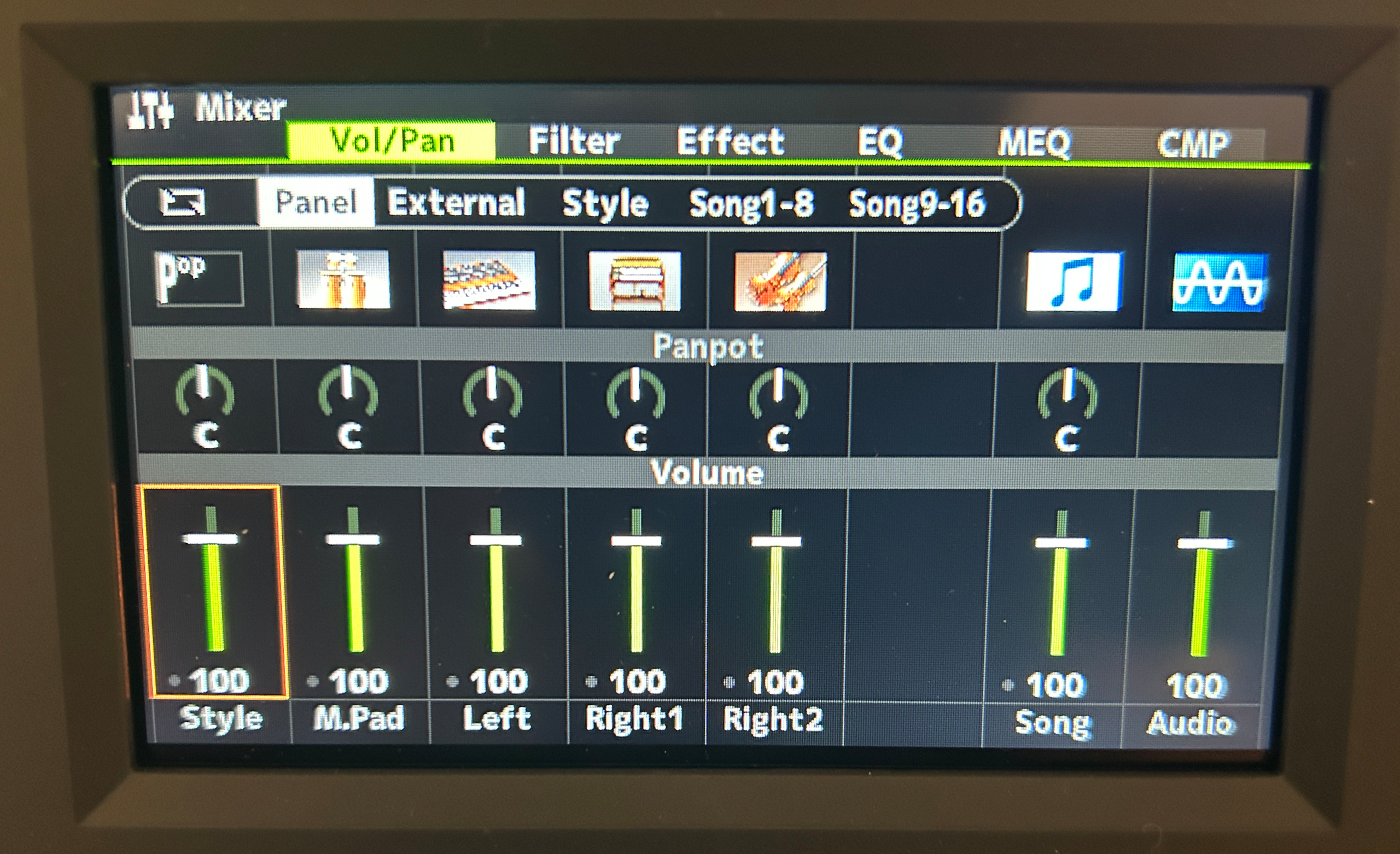
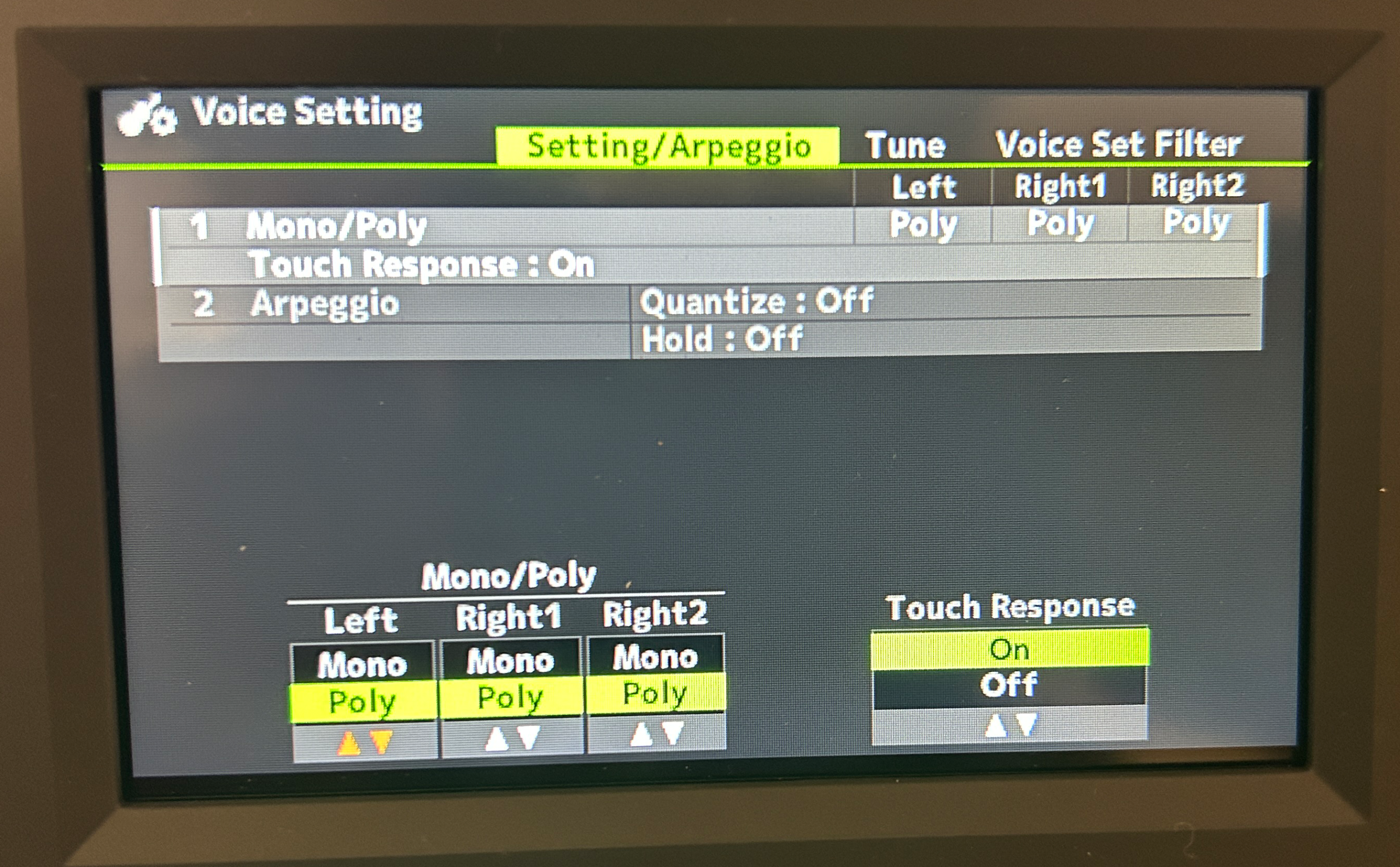
So the Yamaha PSR-SX620 offers a TON of voice editing capabilities; you access most of these from the MIXER menu, but there are additional settings you can play with if you press MENU and then VOICE SETTING. The MIXER menu has tabs for volume & panning, filters, effects (which I’ll get to in a bit) part EQ and Main EQ, as well as compressor settings. Note that this menu not only allows you to configure things for your voice parts, but also the styles and even songs. Note that some of these menus make use of the context sensitive buttons below the menu screen, and they also have “sub tabs” as well as the main tabs; you cycle through those using either the MIXER, CHANNEL or BALANCE buttons as appropriate.
Effects
For effects, you use the effects tab on the MIXER screen. On the PANEL tab, you’ll see columns for your 3 voice parts (Left, Right1 and Right2) where you can adjust reverb and chorus levels for each part as well as choosing a reverb or chorus TYPE by pressing ENTER, and you can apply MULTIPLE DSP effects to your 3 voice parts as well. I can’t do a super detailed deep dive here, or this review will be 9 hours long, because there is a MASSIVE amount of effects to choose from on the PSR-SX620:
- Reverb: 59 presets, + 30 user slots
- Chorus: 106 presets + 30 user slots
- DSP: 322 presets + 30 user slots (and these can be insertion effects into 9 blocks; more on that in a bit)
- Compressor: 5 presets + 30 user slots
- Master EQ: 5 presets + 30 user slots
- Part EQ: 27 parts
- Mic effects: a Noise Gate, Compressor & 3 Band EQ
And a noteworthy thing to mention here: this effects list is almost IDENTICAL to the effects list on the more expensive PSR-SX720+!
So as an example, let’s say I have an electric piano voice chosen for RIGHT1; I’ll move the cursor to that column, and highlight reverb; from here I can use the knob or the context sensitive buttons below the screen to adjust RIGHT1’s reverb level. If I press ENTER, I can choose the reverb and chorus TYPES as well (note that each voice part shares the same reverb and chorus TYPES but each part can have its own reverb and chorus LEVEL.
DSP Effects
Now on to the super fun section – applying multiple DSP effects to my voice parts. if I move the cursor down to the DSP for RIGHT1; first of all when I chose this electric piano voice you may have noticed the DSP light appear on the right side of the keyboard; that’s because this voice already has a DSP set up for it at the factory. So if I press ENTER (or push down the knob) while the focus is on RIGHT1’s DSP, the same screen opens up again, except now I have items to choose from in the PART column that include my voice parts as well as “Channel 1” to “Channel 16” (these are tracks within a 16 track MIDI song if you’re playing one back – you can assign effects to these as well). So take note of the “Block” column; you have nine “Blocks” (named DSP1 to DSP9) that you can assign DSP effects to. DSP1 has no parts listed in the parts column, because it is applied to the style and song sounds. DSP2 to 6 can be applied to any of your voice parts or song channels, DSP7 to your microphone or any song channels and DSP8 and 9 are reserved for applying DSP effects to INDIVIDUAL style parts. That’s pretty amazing; let’s say you have a style that matches your song perfectly, and you like what a style part is playing, BUT you wish that style part sounded different? This is how you can address that (if you’re willing to deep dive into THAT much detailed editing . . . I know I’m not lol 😉 ).
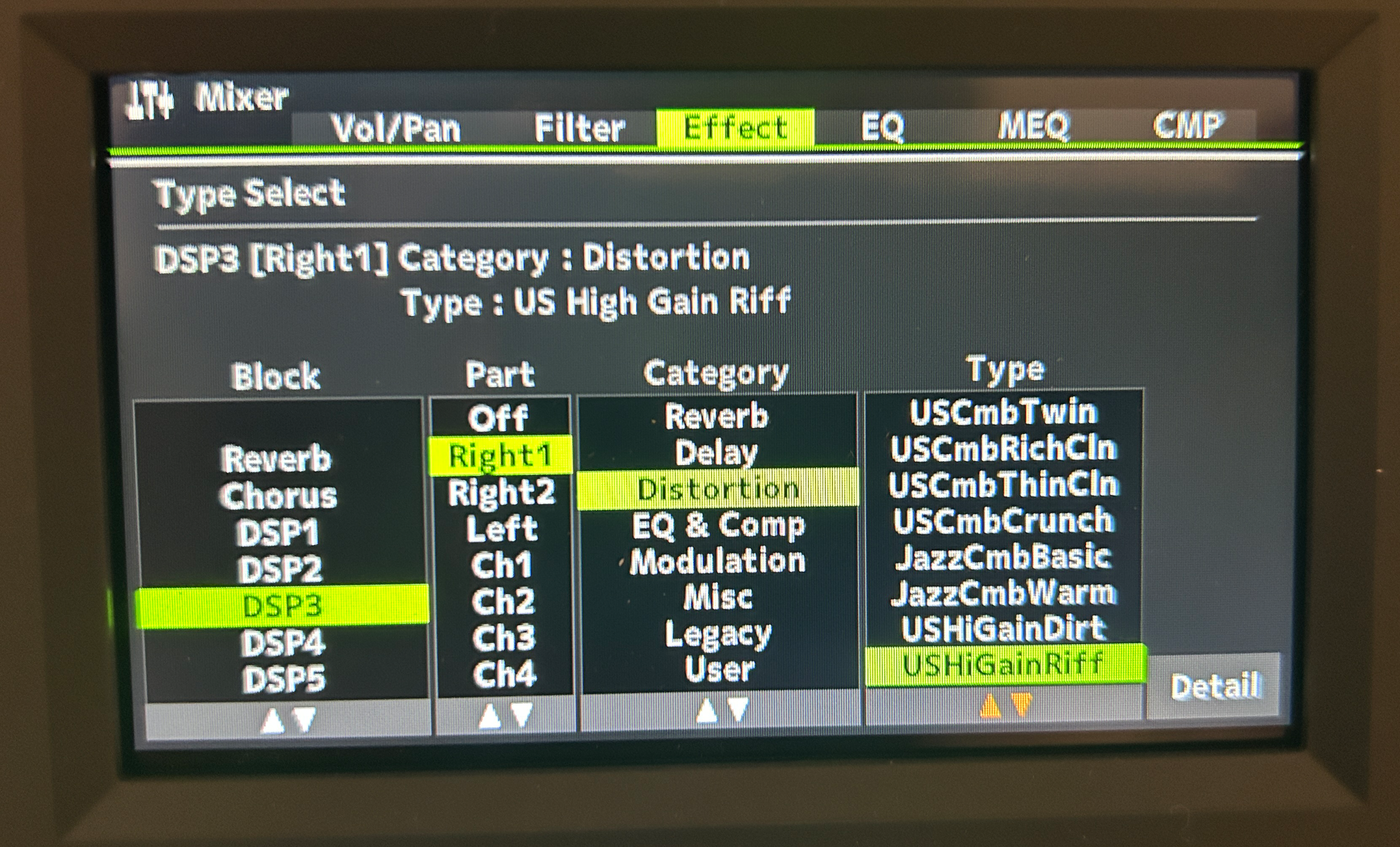
So if I look at DSP5 for my electric piano in RIGHT1, you can see there’s already a “pitch change” DSP in effect. Let’s add another DSP effect to this voice; I’ll switch to DSP4 which is currently OFF; I’ll apply that to RIGHT1 and choose CROSSDELAY1 . . . Now I’ll stack one more effect on this by going to DSP3 and I’ll attach a distortion effect to RIGHT1 as well; I’ll go with “US HIGH GAIN RIFF”. Now you can hear BOTH of those effects applied to the same voice. You could really lose yourself in here for hours tinkering with your voices, but . . . super cool. I do plan on making a short video on how to setup a rotary speaker and distortion effect for an organ voice . . . stay tuned to my channel for that.
Rhythms & Accompaniment
Given that the PSR-SX620 IS a high end arranger, as you would expect, it has a TON of cool arranger features. There’s actually so much to talk about here that in this review, I’m going to try and list and quickly describe as many as I can so that you know WHAT the keyboard can do, but diving deep into all of these features will make this review WAY too long.
Yamaha has increased the total number of styles on the PSR-SX620 from 415 on the SX600 to 450 (which actually matches the number of styles on the PSR-SX720!), so TONS of genres are really well covered here. There are 416 Pro Styles, 33 Session Styles, 1 Free Play Style, and you have the ability to add new styles. Freeplay styles are kind of cool, they actually have no tempo or beat; basically just kind of “floaty” sounding pads that will still follow your chord changes, but there’s no discernable beat. Session styles attempt to be “truer to their genre” by playing more advanced genre specific chords, riffs and changes – so these can be cool and fun to experiment with, but you do have to be aware of what each one tends to do (for example if you finger a simple major triad, you may get a jazzy 7th chord which may or may not work with the song you are playing).
Ok so let’s start talking about some of these advanced accompaniment features; first off, you have lots of options for controlling your style playback, all with easily accessible direct access buttons: you have 3 intros, 3 endings, 4 variations, a break, the usual sync start & stop & you can also enable or disable auto fills when you switch variations, all of these have dedicated direct access buttons. I really like the options for intros and endings; there is always a short intro available which is basically a count-in & I really like that. And something super cool on the PSR-SX620 is the “FADE IN-FADE OUT” button. This allows you to fade in or fade out a style as an alternative to using intros and endings. As it turns out, the PSR-SX720 also has this (I never realized it was there lol), BUT you have to assign that to an assignable button; I like how the SX620 has a dedicated panel button for that.
And there is also a button in that section to enable or disable synching the variations with the “One Touch” settings. Each style has been pre-programmed with 4 one touch settings, accessible with 4 buttons; each setting has different voice combinations already set up for you that match the current style, allowing you to quickly and easily switch between voices. If you click the “OTS Link” button, then when you switch variations, the one touch settings will automatically switch with them (so you can switch voices and variations at the same time). You CAN edit one touch voices, BUT you then have to save the entire revised style as a user style. And, there can be up to 8 parts within any style, and you can easily mute or enable any of the parts as you see fit using the “Channel On/Off” item within the menu system.
For chord fingering options, it’s night and day compared to the entry level PSR-E series, which I’ve always been frustrated at for only having 2 options. The PSR-SX620 has EIGHT modes (you choose your mode by pressing MENU and then SPLIT POINT/CHORD FINGERING; then switch to the CHORD FINGERING tab):
- Single Finger: this is one of those “wizard” modes that I’m NEVER a fan of; you can use specific key combinations to trigger chords with less fingers, BUT . . . the notes you’re playing are NOT necessarily part of the actual chord, which to me is NOT a good idea; for example, to play a major chord you play the root key and the closest black key to the left . . . To me this is just teaching beginners bad (and confusing) habits
- Fingered: this is the most common mode found on keyboards, where you have to finger the entire chord
- Multi-Finger: this is a bizarre one actually, it’s a combination of fingered and single finger, so it will detect either
- Fingered On Bass: this works like fingered, except you can trigger a slash chord (so control the note the bass plays) by playing the appropriate chord inversion (so for example if I finger a C major chord with the G in the root the bass player in the accompaniment will play a G instead of focusing on the C
- Full Keyboard: this is a good option for pianists; this will detect chords using the entire range of the keybed, regardless of where the note chords are played, or what order they are played in, but you must play at least a triad (so 3 notes) for a chord to be detected
- AI Fingered: this is the same as fingered, but allows you to trigger chords with less than 3 notes; while you can trigger a power chord (which is only 2 notes) using fingered, with AI fingered, you can play ANY two notes and the keyboard will do it’s best guess on what you want
- AI Full Keyboard: this (in my opinion) is the BEST option for pianists, because like Full Keyboard, it uses the entire range of the keybed (so you actually get to play with your left hand), but this mode allows less than 3 notes to be played
- Smart Chord: so this is another “wizard” mode which IS also found on the cheaper PSR-E series but this one I actually kind of like; and, this one is MUCH more advanced than the PSR-E series version. Smart chord allows you to specify the key signature for your song ahead of time, and then trigger the diatonic chords from that key signature just by playing the root note. That’s where the functionality on the PSR-E series stops; but on the PSR-SX620, you can customize it further to not only specify the key signature, but choose a genre TYPE more advanced chords to be used based on a chosen genre (Standard, Pop, Dance, Jazz or Simple). So for example in the key of C Major, if I play a D I will get a Dm using the Standard setting; but if I use the Jazz setting, I will get a Dm7 add 9 which is a jazzier chord
Another cool feature found on the SX620 is the “Manual Bass” option, which you access from the SPLIT POINT tab. With manual bass, you can flip the chord detection area to be the UPPER side of the keyboard instead of the lower, and then you can freely play bass lines (or whatever you want for that matter) in your left hand; any notes played in the left hand will be ignored as far as determining the current chord for the rest of the backing. AND when you enable manual bass, the bass normally included in the accompaniment gets muted – this is super cool.
We also have some additional style options we can set within the STYLE SETTING menu, where you can fine tune settings like the timing of when variation changes happen (immediately or at the next bar), dynamics control, OTS link timing etc. Another interesting option offered by the SX620 is “Left Hold”. You can toggle this on and off with a direct access button; when it’s on, if you have a left voice selected that is not a naturally decaying voice, then you can let go of the keys and the voice will keep playing (as if you were still holding down the keys) until you play a new chord (which will also remain on), or turn Left Hold off or stop the style playback.
And, don’t forget you also have a LOT of customization you can do for your style within the MIXER menu. If you move the focus to the STYLE submenu, then you can adjust all the same things you could adjust for your voice parts (volume, panning, filter, effects, EQ etc) individually for each style part. And if you press CHANNEL ON/OFF you can easily mute or revoice style parts to use different instruments.
So even though I’m nowhere near being an expert on arranger keyboard playing, I can say that the arranger features on the PSR-SX620 are REALLY impressive, and I would definitely call them “PRO” level. They are miles ahead of the PSR-E series functionality, and from what I’ve seen so far? The PSR-SX620 has most of the same core functionality as my PSR-SX720 does.
Registration Memory
So after having been completely surprised about how INCREDIBLE the registration memory system is on my Yamaha PSR-SX720, I was REALLY curious to how the PSR-SX620’s version compares. I mentioned earlier that the SX620’s workflow and user interface are REALLY similar to the Yamaha DGX-670’s, and the registration memory workflow on the DGX is . . . well . . . not very good. But have no fear; the PSR-SX620’s registration memory system IS pretty much exactly the same as my PSR-SX720, so . . . I’m super impressed once again.
So what makes this system so awesome? You can save up to 8 different presets (so voice combinations, styles, effects etc) in ONE registration bank, and name that bank after a song. When that bank is loaded, you can quickly and easily bounce between your presets just by pressing the 8 buttons in the registration memory section on the front panel (slots that have a preset within them will be blue, and they will turn orange when you select them). And what makes this system even MORE amazing to use (especially as a gigging musician) is you can then assign these banks (which are songs) to a playlist for a gig! When you’re at the gig, you can do what I do; just load the playlist screen and LEAVE IT THERE FOR THE ENTIRE SHOW! You just move to the next song when ready, and you’re good to go!
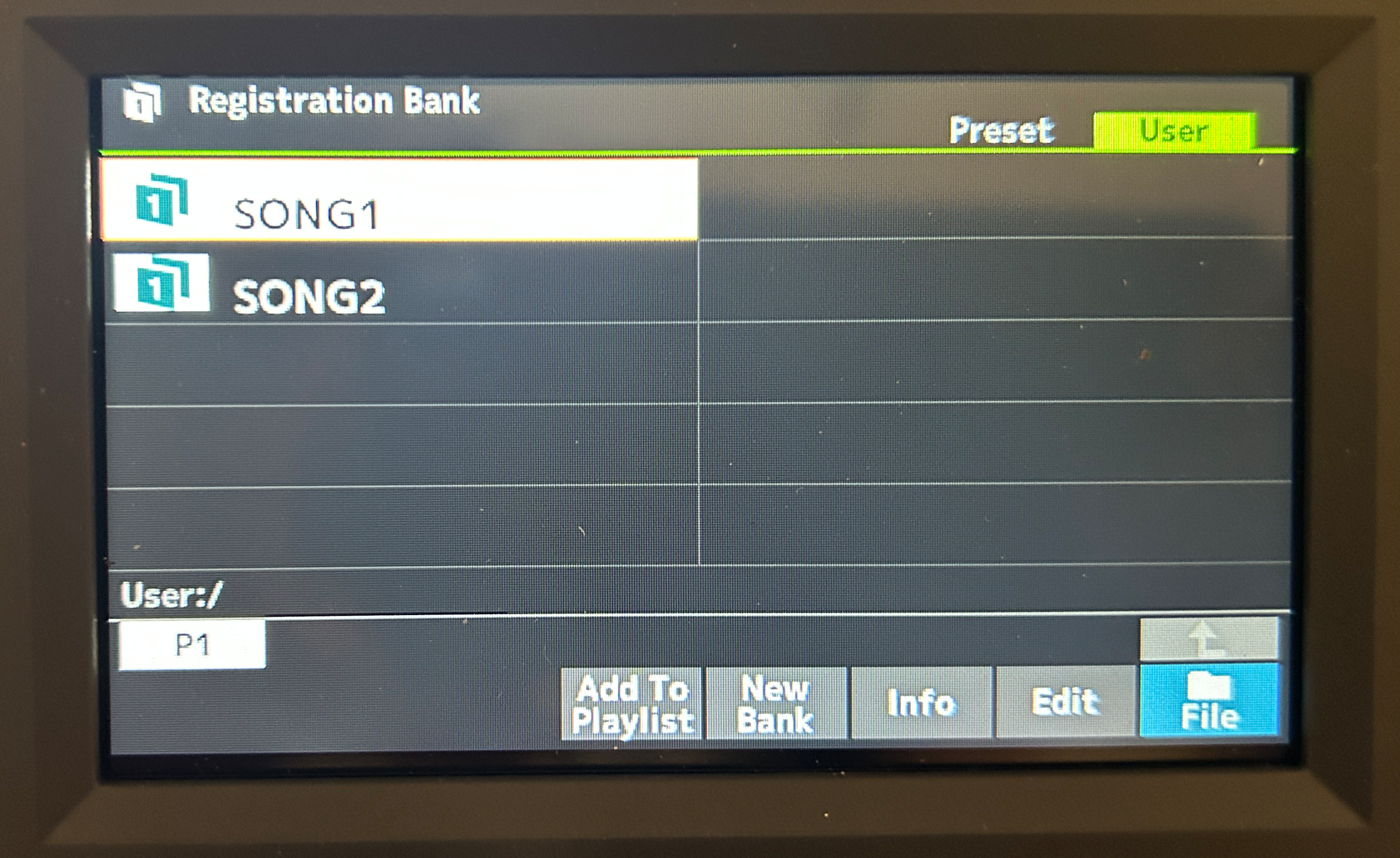
So as a quick example, let’s save a couple of registration banks. I’ll just use the default settings I have now, and I’ll hold MEMORY and press BUTTON1 to save these settings in the first slot. Then let’s say for this song I need an organ for a solo – I’ll choose an organ voice as the main then hold MEMORY and press button 2. Now to save this entire bank as a song (now this workflow IS a bit weird, but it’s fine once you’re used to it – it is the same as my SX720) – press + and – at the same time to open up the list of banks. Press ENTER and you’ll be told your bank has changed and you’ll be asked if you want to save it; choose YES then SAVE and then give it a name (I’ll call it SONG1).
Now let’s make another one – I’ll press NEW BANK to clear my 8 slots; now I’ll go to the main screen and choose a guitar for my main voice. I’ll hold MEMORY and press BUTTON6 to save that in slot 6. Then once again, I press + & – at the same time to open the bank list & press ENTER to get the prompt up to allow me to save this one, which I will name SONG2.
So if I press EXIT to go to the main screen; whenever I want to load a registration bank, I can press + & – at the same time, switch to the USER tab (there is a preset registration for the song “Blinding Lights” that comes with the SX620) and then choose a registration to load. So if I choose SONG1, you’ll see buttons 1 and 2 light up blue (because I’ve saved presets in those) and if I choose SONG2, I get a blue light on button 6. Now remember, I haven’t actually LOADED those presets yet – to load them I press the button and it turns orange.
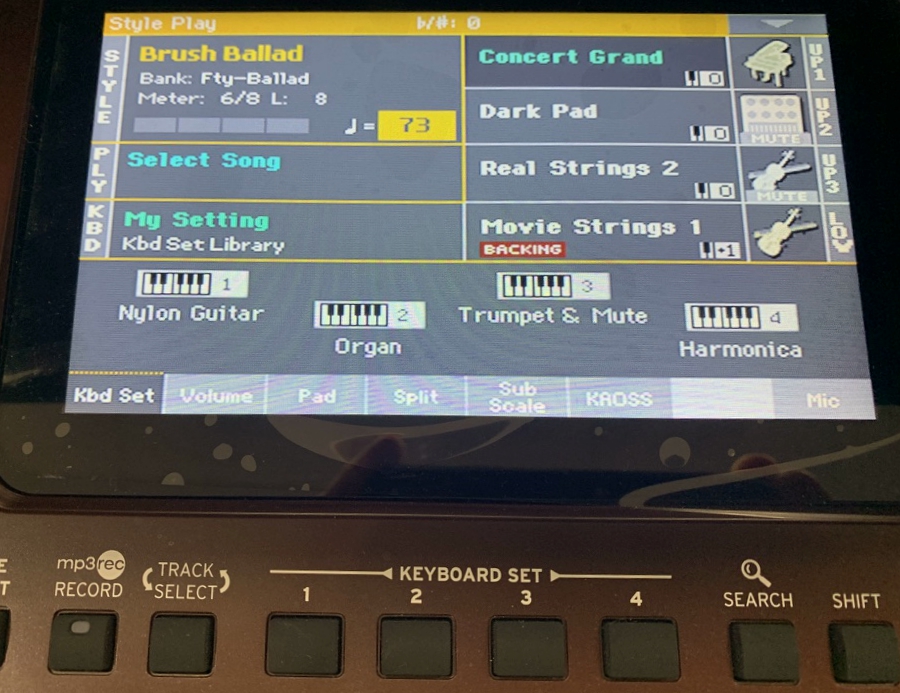
So regardless of how many slots or variations I need for a song, I will still use up the entire bank of 8 slots for that ONE song (so I have some songs with 3 or 4 slots setup, but for most songs, I’m only using 1). This keeps all of these variations together in one place (using the song’s name) which is awesome and super handy, not to mention REALLY easy to find because the registrations are stored alphabetically. On most keyboards (including the Yamaha CK-61), registrations MAY be nameable, but they’re NOT sorted in a way that makes them easy to find; the CK-61 will store them as “Bank 1, Slot 3” or “Bank 2, Slot 5” etc.
So this is already a way better system, but it doesn’t end there; the Playlists feature makes it even BETTER!
Playlists
So what are playlists? You can create playlists of songs (so basically a list of registration banks), sort that playlist in any order you like, and give it a name. The combination of this type of registration memory system with the added functionality of playlists has been GAME CHANGING functionality for me with my PSR-SX720, and it’s exactly the same system with the PSR-SX620. I was actually at a band practice last week where we were coming up with a playlist for an upcoming gig, and I made that while we were chatting about it, in just a couple of minutes.
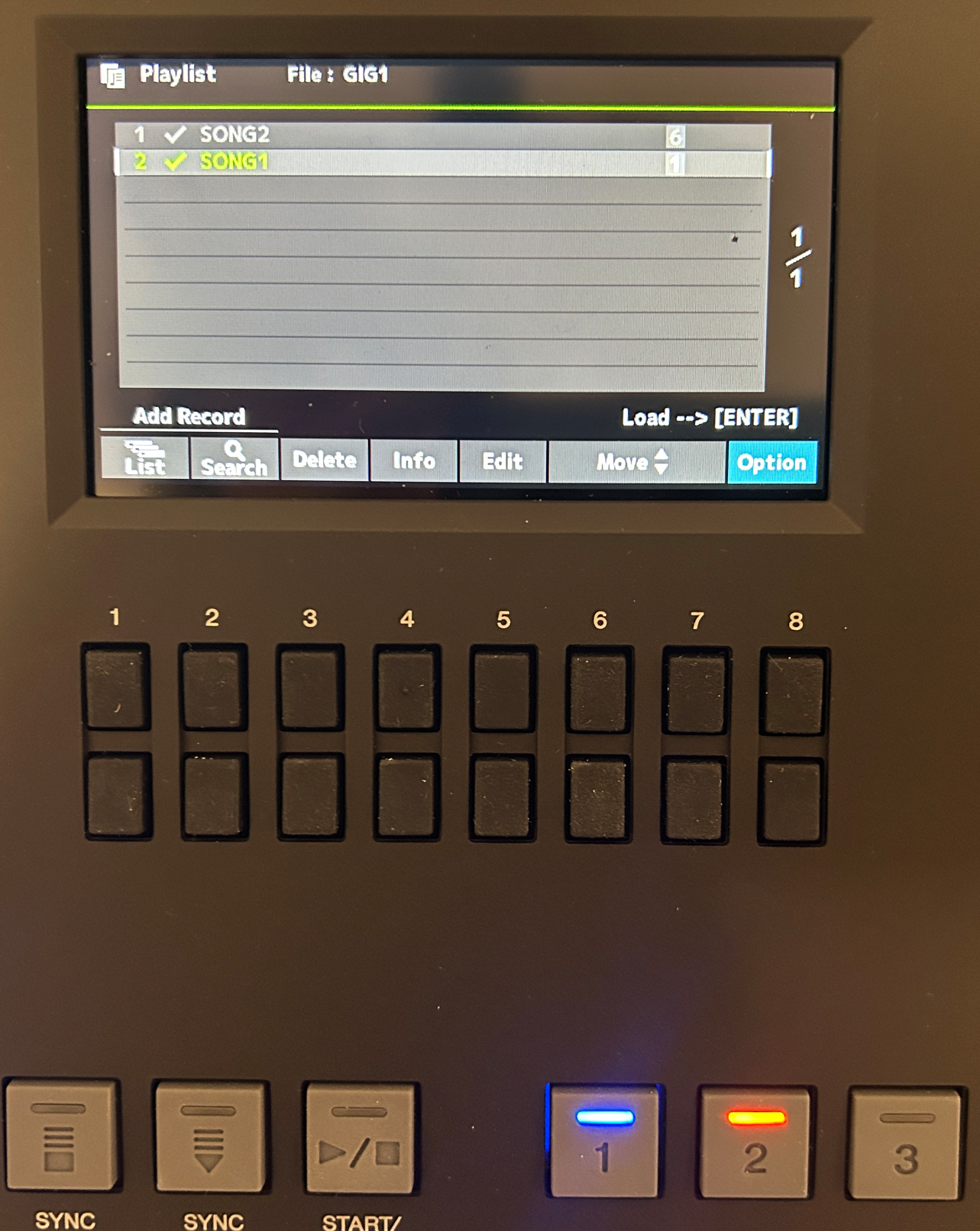
So if I press the PLAYLIST button on the front panel, whatever the last selected playlist was will appear (note there is a playlist named “Sample” that includes the “Blinding Lights” registration bank in there that comes with the SX620 which will appear the first time you do this). I want a new playlist so I’ll press OPTION then CREATE NEW PLAYLIST. I’ll press the LIST button and that opens up my registration banks – I’ll press ENTER on both SONG1 and SONG2 to select them and then add those to my playlist. Let’s assume I want SONG2 to be first – I’m highlighted on SONG1 so I’ll press MOVE to move it down. Then I’ll move the focus to SONG2 and press EDIT; from here I can save myself a step at the gig by automatically loading the slot I want – I only have slot 6 in this one, so I’ll specify that. Then I’ll choose SONG1 and edit it to load slot 1 automatically. Then I’ll press OPTION–>SELECT & SAVE and save my playlist; I’ll name it GIG1.
Now just so I can show you something, I’ll quickly make a second playlist by pressing OPTION and CREATE NEW PLAYLIST; then I’ll choose SELECT & SAVE (even though my playlist is empty) and save this just using the default name “New Playlist”. So now, when I get to the gig (and this is a bit strange, but once you know . . . you know 😉 – instead of pressing PLAYLIST, I press the DIRECT ACCESS button and THEN I press the PLAYLIST button; THIS is how you get a list showing all of your saved playlists; I’ll move the focus to GIG1 and press ENTER to make it the active playlist, then I’ll press PLAYLIST again to actually bring up the songs. But now, I’m all ready to go and don’t even need to leave this screen at the gig if I don’t want to. I’ll press ENTER on SONG2 (the first one in the list) and note that it turns green, AND that slot 6 is orange (because I’ve set this up to automatically load that slot). Once I’m ready for song 2, I just move the focus to SONG2 and press ENTER; note how it’s loaded slot 1 for me by default because I set that up earlier. Then once I’m ready for my organ solo I can press slot 2 button to load that voice.
Then once the gig is over, I can delete those playlists and make news ones for the next gig. This is SOOOO much easier than it would be with the CK-61; I would need to make sure all my songs on my SongBook Pro app on my iPad (lyrics & chord charts) also note the registration bank(s) info for each song so I know how to find them (“page 3, slots 5&6” etc); and then at the gig I would have to quickly move to the correct page manually and then load the correct registration for that song.
Registration Settings
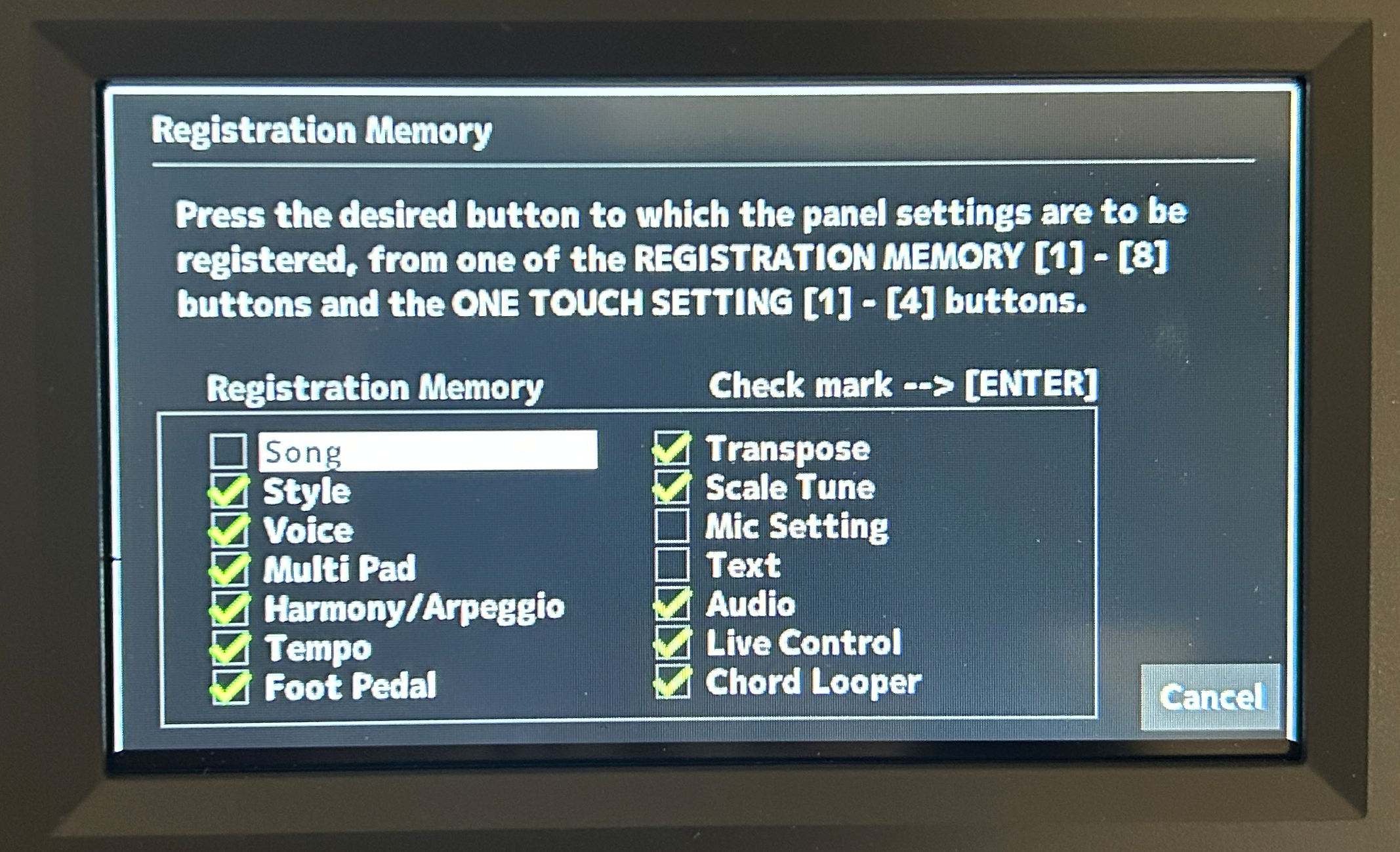
It’s also important to know that you have some control over what does (and what does NOT) get saved when you save a registration memory slot. If you press MEMORY on the front panel, you can make your selections here as to what will get saved. Note that the currently selected audio song (“AUDIO” in this list) is NOT saved by default, so if you want to have a certain audio track ready to play when you load a registration slot, you’ll need to enable that here:
Recording
For recording, you can record & playback audio files to a connected flash drive (so these WILL include your vocals if you’re using a mic), or you can record MIDI files to the keyboard memory or to the flash drive. For MIDI recordings, you can either use the “Quick Recording” option, or you can dive into more complex recordings using the 16 track recorder. Since MIDI recordings are data only, they do NOT include vocals.
Audio Recordings
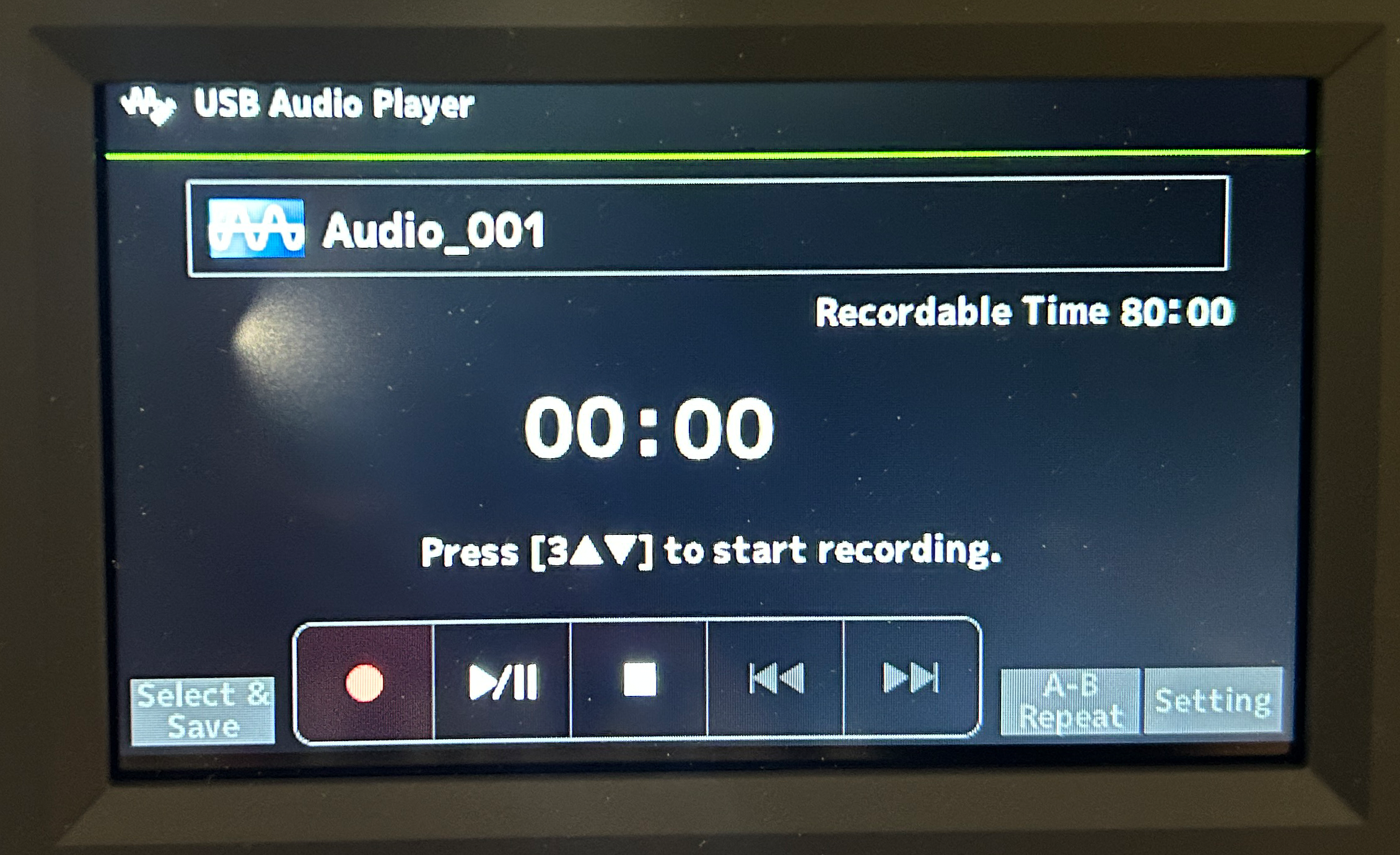
Audio recordings have typically been my “go-to” in the past, and they work really well on the PSR-SX620. It’s super easy to record, & the recordings will include everything (including vocals and accompaniment). To record an audio file, insert a USB flash drive (preferably formatted using the keyboard) and press the USB AUDIO PLAYER button. Then just press the on screen RECORD and then the on screen PLAY/PAUSE and play – once you’re done, press the on screen STOP button.
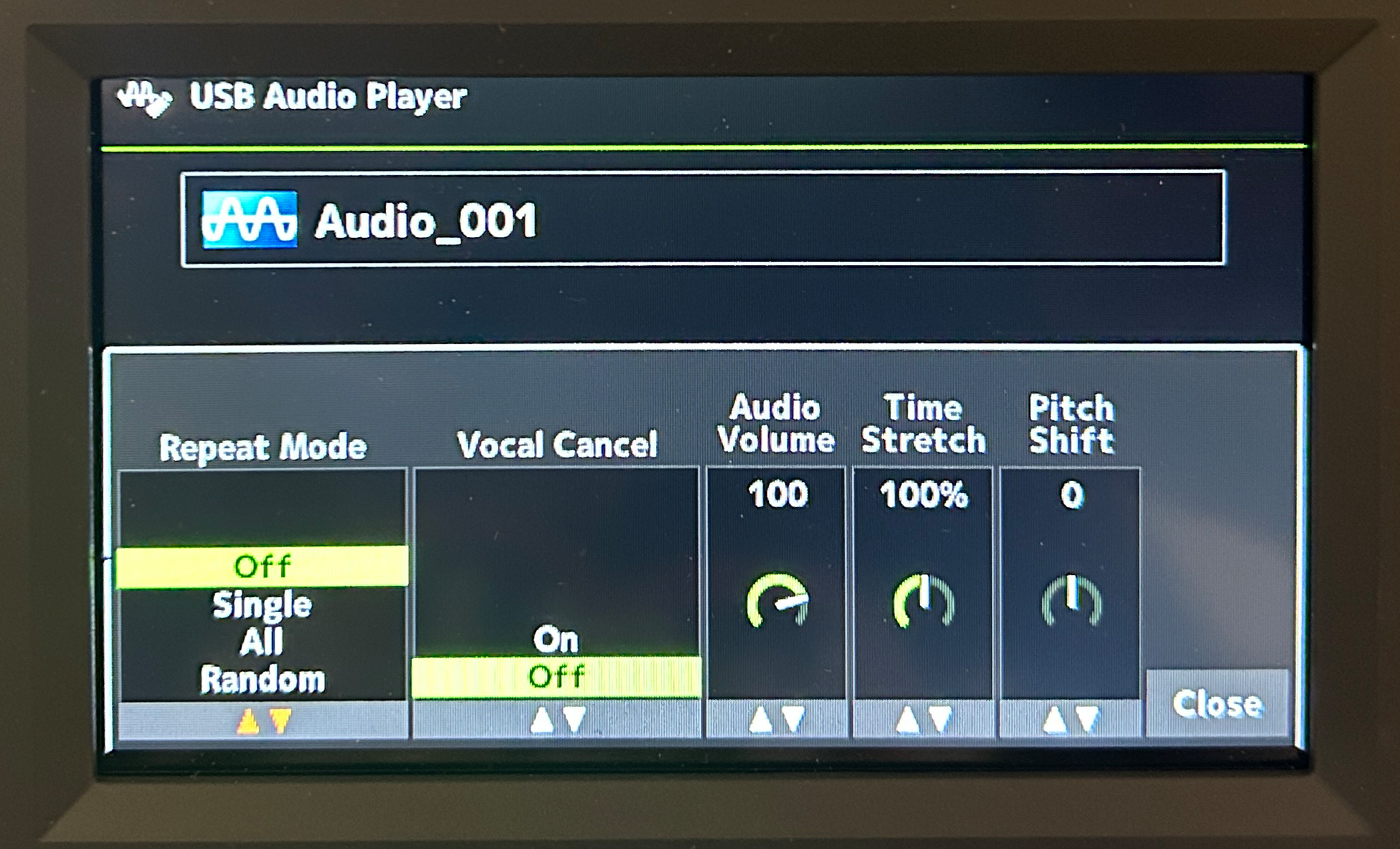
And when you’re playing audio recordings back, you can do some cool stuff – if you press the on screen SETTING button, you can set a repeat mode to repeat the same song, or go through all songs on the flash drive in regular or random order, you can enable “Vocal Cancel” to try and remove vocals from a song so you can sing (although I’ve always found this rarely works well), and you can adjust the audio track’s relative volume, you can even time stretch it up or down, but the COOLEST setting here (by far in my opinion) is the ability to transpose an audio track which is a SUPER useful feature (and it actually works surprisingly well).
And once you build up multiple recordings, you can choose which one you want to play by pressing SELECT & SAVE and choosing a recording from the list. And keep in mind, if you like to play along with backing tracks, this is a great way to do it – if you have a backing track you’d like to have at the ready to play along with when you choose a registration bank for that song, you can save that audio file within that registration so it’s automatically selected and ready to go . . . super handy.
MIDI Recordings
The PSR-SX620 also has some pretty advanced MIDI recording functionality; you can record and edit or re-record up to 16 tracks; the editing is actually pretty advanced and includes features like punch in and punch out). MIDI recordings can be stored either in the keyboard memory, OR on a flash drive. MIDI recordings will include all your voice parts and any accompaniment styles, but will of course NOT include vocals (you can only record vocals in an audio track). There isn’t enough time in this review to deep dive into all the cool multi track recording functionality, but you CAN also make a “quick and easy” MIDI recording without having to know a bunch about how to work with the individual tracks (so this is actually a great way to quickly capture an idea).
To make a quick MIDI recording, just press the RECORD button in the “Song Control” area – you’ll see all of the 16 tracks pop up on screen, but for a simple MIDI recording just ignore all of that and just start playing (and the recording will start) – when you’re done, press the STOP button; then you can replay it by pressing PLAY. These aren’t automatically saved and to be honest the procedure for saving is NOT very obvious or intuitive; to save a MIDI recording, press the SONG FUNCTION button, then press SELECT then navigate to either the USER or USB tabs, then you can press SAVE and name your recording. If you choose the USER tab it will get saved onboard in the keyboard memory, or if you choose USB it will get saved there.
Chord Looper (Sequencer)
The Chord Looper is a REALLY cool feature that was missing on the PSR-SX600 that has been added to the PSR-SX620. You can practice with built in chord loops in any key signature, or you can even create your own you to record a chord sequence by playing the chords in your left hand at any tempo you like, then have the keyboard play that chord sequence back using any of the built in styles at any tempo (so you can change the style and tempo any time). This frees up your left hand so you don’t have to make chord changes, so you’re free to play with both hands. And you can loop the sequence to keep repeating, so this is a handy way to practice soloing, comping or writing a melody over a certain progression, so . . . super cool.
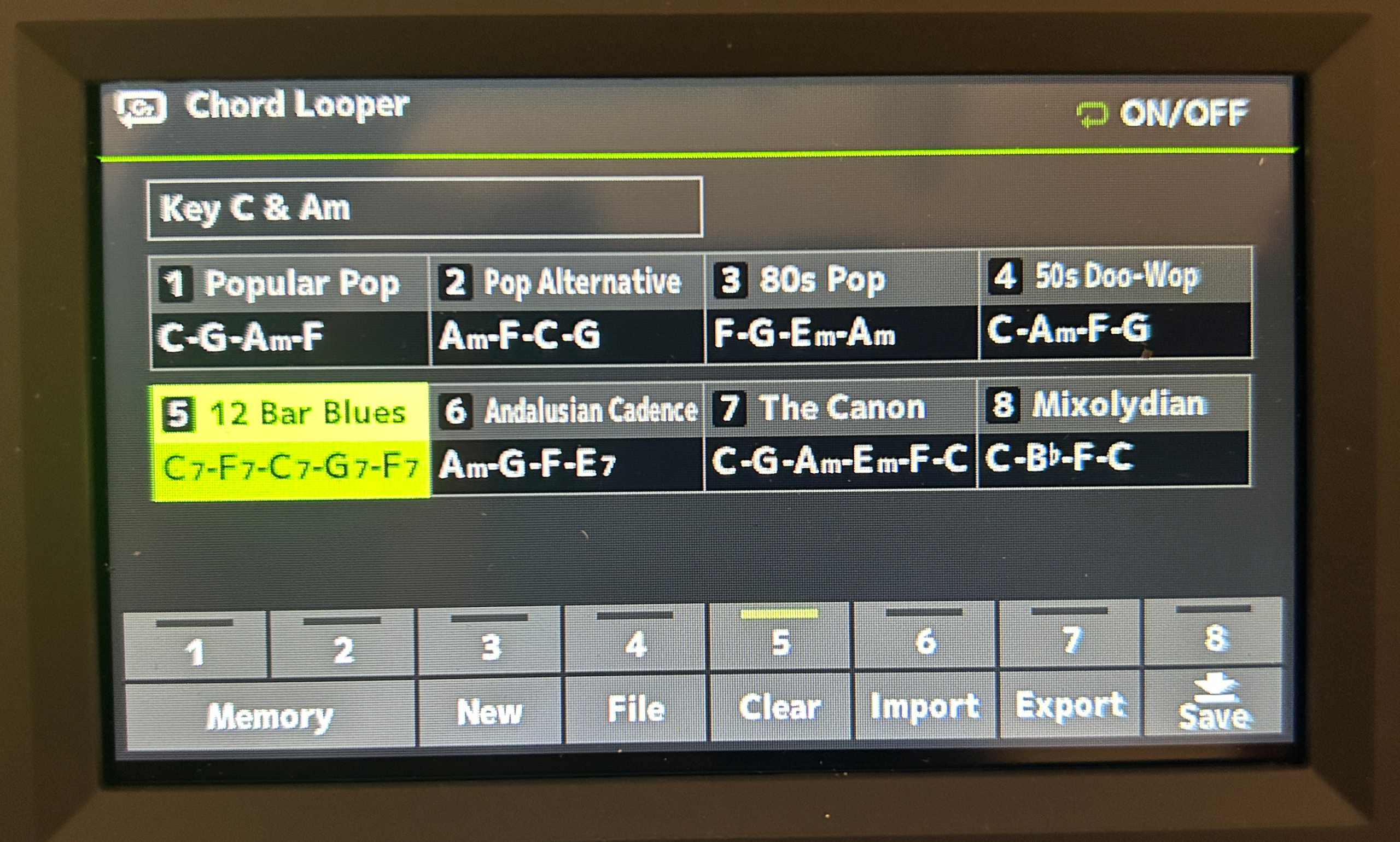
As a quick example, I’ll press MENU then go to the MENU2 tab and choose CHORD LOOPER. If I press FILE, I can choose a key signature and then choose from some common chord loops; I’ll choose 12 bar blues. Now if I go out to the main menu, I’ll pick a rock’n’roll style. Once a loop is loaded, the CHORD LOOPER ON/OFF button will light up blue; if I press that button it starts to flash orange, meaning it is active. Now if I press START for the style, it will start playing the style and going through those chord changes; now I can play whatever I want with BOTH HANDS, without having to worry about fingering chord changes myself with my left hand. This is a FANTASTIC practice tool for practicing comping, solos or even just practicing scales – I’ve always found practicing scales over accompaniment like this (as opposed to a boring metronome) is a GREAT way to “nudge” beginners towards soloing.
So for creating your own, I’ll do another quick demo: I’ll press NEW then I’ll press the REC/STOP button in the CHORD LOOPER section of the front panel. Now I can finger my own chords and press STOP when I’m done. I’ll play a C-G-Am-F progression. Then I can press MEMORY, and load that into one of the 8 available slots. Now to use that one, I can press ON/OFF to make it active, press PLAY on the style, and practice over my custom progression. And I could fill in more of these slots and save them all as a user chord looper bank.
I don’t have time to do a much deeper dive into the chord looper in this review, but I did do a deep dive video on the Chord Looper on my PSR-SX720, and at least from what I’ve seen so far on the SX620, the general functionality appears to be the same – here’s a link to that video if you want to check it out: Yamaha PSR-SX720 Chord Looper Deep Dive
Connectivity
The connectivity on the PSR-SX620 is REALLY good; it actually has a couple of features that my PSR-SX720 does NOT have.

For connectivity on the SX620, we’ve got the following:
- ¼” stereo headphone port that is thankfully on the front of the keyboard
- Proper ¼” LR line outs for connecting to external audio equipment like PAs, amps, mixers or audio interfaces NOTE: the Yamaha website seems to be making a big deal about how the SX620 has “upgraded audio output circuitry that delivers a clearer, more powerful signal when connected to external speakers or PA systems”. To be honest, I have no idea what that actually means; maybe the line outs on the SX600 were a lower quality or something – I never did test an SX600, but as far as I can tell from listening to the SX620 through the lineouts (connected to my mixer) they sound totally normal (and no better than what I hear from my SX720 . . .)
- 1/8″ stereo aux in port for streaming in external audio from a device like a phone or tablet
- 1/4″ mic in port for connecting a dynamic mic (I’ll be going over the mic input in a bit)
- 2 x ¼” foot pedal ports that can be configured for either switch functions (sustain, turning rotary on or off, etc) or expression functions with an expression pedal (volume +/-, portamento time, etc) – note that the SX620 is NOT compatible with half pedaling for sustain
- USB to device port for connecting to a flash drive for backups, transferring files or installing updates
- USB TO Host port for sending MIDI data to a device like a tablet or computer, which has been upgraded to USB-C (thanks Yamaha, for keeping up with the times), and more importantly, UNLIKE the Yamaha PSR-SX720, the PSR-SX620’s USB port DOES include a USB audio interface! This adds the following functionality:
- you can connect the keyboard directly to a phone to record high quality videos with direct audio
- you can transmit high quality audio directly to a DAW app on a device with just a USB cable
- you can stream external audio IN to the keyboard from a device, which not only gives you another option for streaming in external audio, but also means if you are using the SX620 to trigger sounds on an external MIDI source or VST, those sounds will come straight back over this connection to the keyboard without any lag
- The PSR-SX620 also has one MORE feature the PSR-SX720 does NOT have (although this WAS added to the PSR-SX720+) BlueTooth audio in. This is a super handy feature for streaming in external audio from a device wirelessly, but I do like to share an experience I had once with Bluetooth audio in. I was playing an outdoor gig with my Yamaha CK-88, and my friend borrowed my phone to take some pics and video. Then he sat down and started using my phone to load some YouTube videos . . . the phone was paired with my CK and his videos started coming out of the PA system 😀 So BlueTooth audio in IS cool, but keep that in mind if you’re a performer
So overall, the connectivity on the Yamaha PSR-SX620 is pretty awesome; the ONLY thing missing in my opinion would be 5 pin MIDI IN and OUT ports (like I DO have on my PSR-SX720); these would allow you to connect a fully weighted MIDI controller to the SX620 and take advantage of the SX620’s awesome piano voices but with a fully weighted keybed.
Speakers
The PSR-SX620 has two 12 cm speakers with 15 watts each for a total of 30 watts. Even though I never did hear the PSR-SX600’s speakers, I was really curious to hear these ones because Yamaha did include some interesting sounding upgrades. The new speaker design includes an internal bass port and an enlarged internal sound chamber, as well as player facing bass reflex ports (these ports are usually downward or backward facing) so all of that combined should REALLY enhance the low end EQ sound; and there’s mention of “structural refinements in the cabinet itself” which are also meant to “tighten up” the clarity. And, the speakers themselves seem to be tilted EVER SO SLIGHTLY more towards the player, which I’m always a fan of.
So how do the speakers sound with all those fancy sounding improvements? They sound REALLY good! I have to say I’m pretty impressed; there IS a lot of low end coming out of these, but the highs are still nice, crisp and clear, and there’s no distortion even at MAX volume. I did a VERY quick side by side with my PSR-SX720 which also has 30 watts total, BUT the SX720 has FOUR speakers instead of 2 (there’s two 13 cm AND two 5 cm). I do think that the PSR-SX720’s speakers do outperform the PSR-SX620 in terms of low end and overall volume (bigger main speakers AND 2 extra speakers DO make a big difference), but the SX620’s clarity in all frequencies does seem to compete well with the PSR-SX720, especially clarity in the low EQ range, which is likely due to all those enhancements Yamaha made.
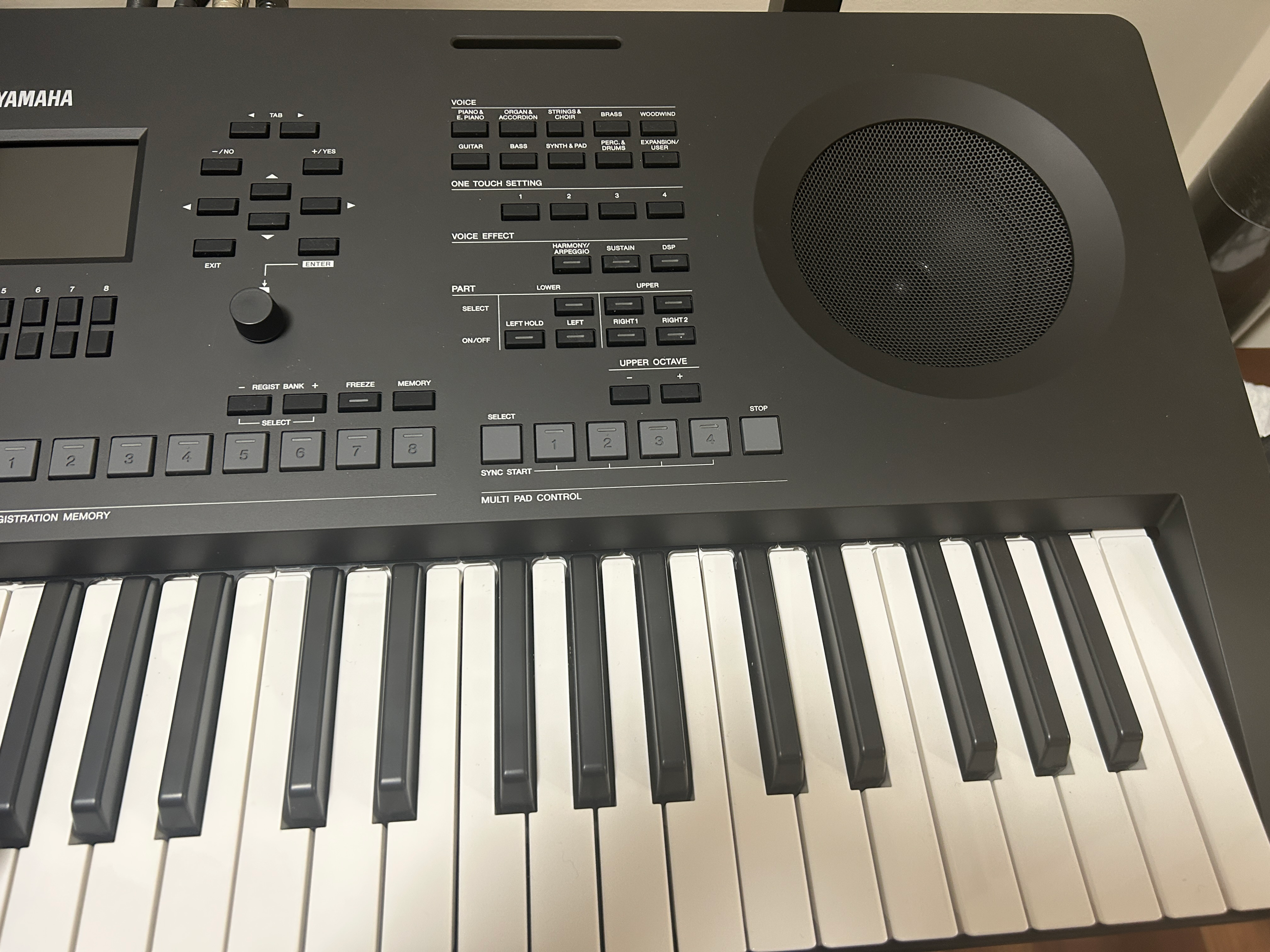
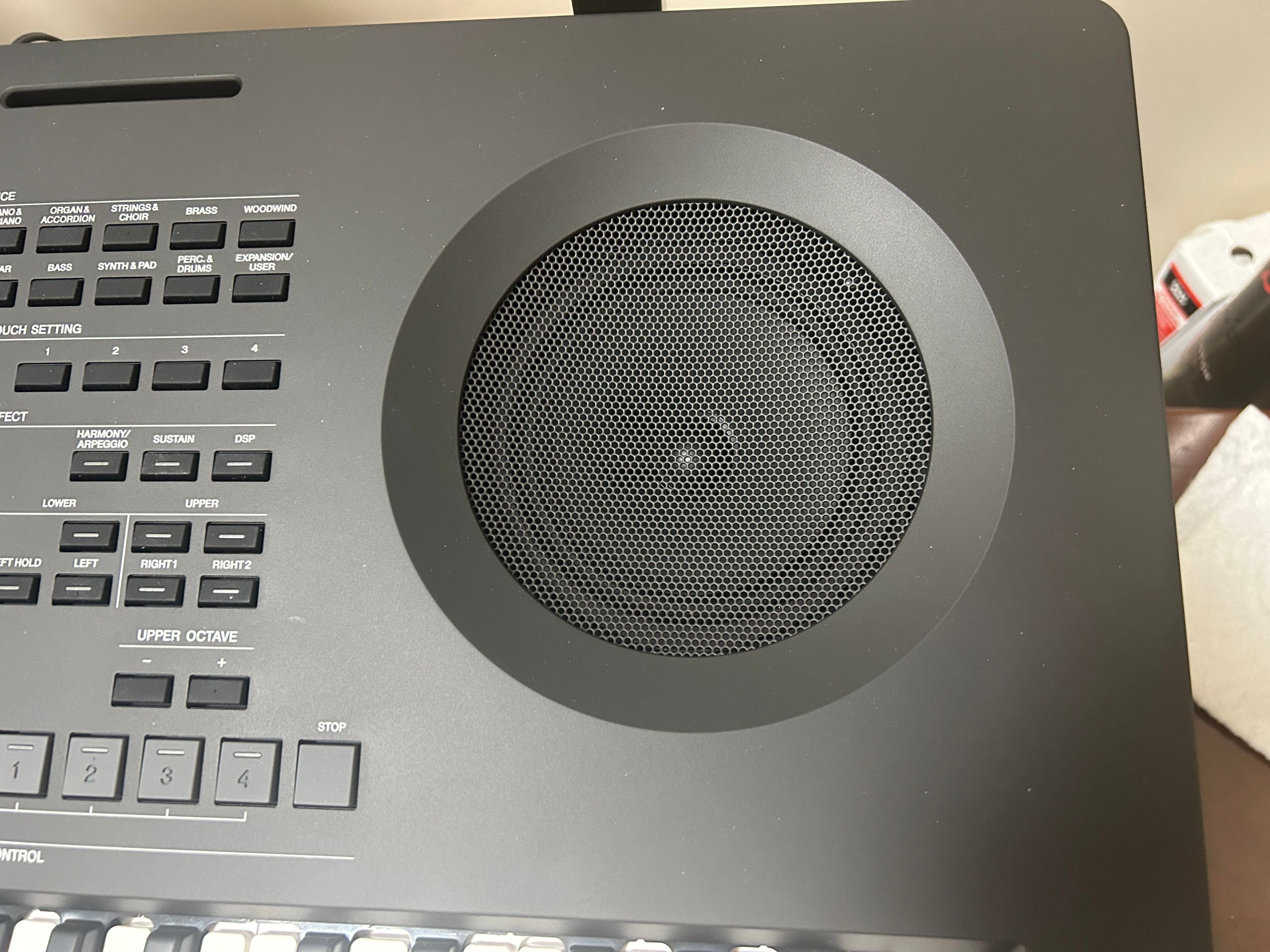
You could easily use the PSR-SX620 speakers as personal monitors in a performance in a small to medium sized gig, and for a performance in an intimate environment like a cafe? You could easily get away without any external amplification. For a full rock band in a medium to large sized stage though? You’re still going to need something louder as a personal monitor (when my band plays gigs at a bar, I leave my speakers on my SX720 turned on, but I can’t hear them at all). And I have heard some complaints online about how the SX620’s speakers LOOK . . . which I personally find TOTALLY baffling . . . all I care about is how they sound, and they sound fantastic.
Here’s a quick demo of the speakers on the PSR-SX620, just as picked up by the built in mic on my iPhone:
Other Features
Mic Input
The PSR-SX620 has a 1/4″ mic input port, so you can connect a mic and sing along; and FYI, I’m using this mic input right now – I have my Samson Q2U dynamic mic connected to the PSR-SX620. As with any of the keyboard mic inputs I’ve ever used, there is no phantom power provided, so you do have to use a dynamic mic (not a condenser). And, it is also important to use a mic cable that has a TS (one stripe) connector NOT a TRS (two stripes) connector; if you use a TRS connector, you’ll likely have issues getting enough volume.
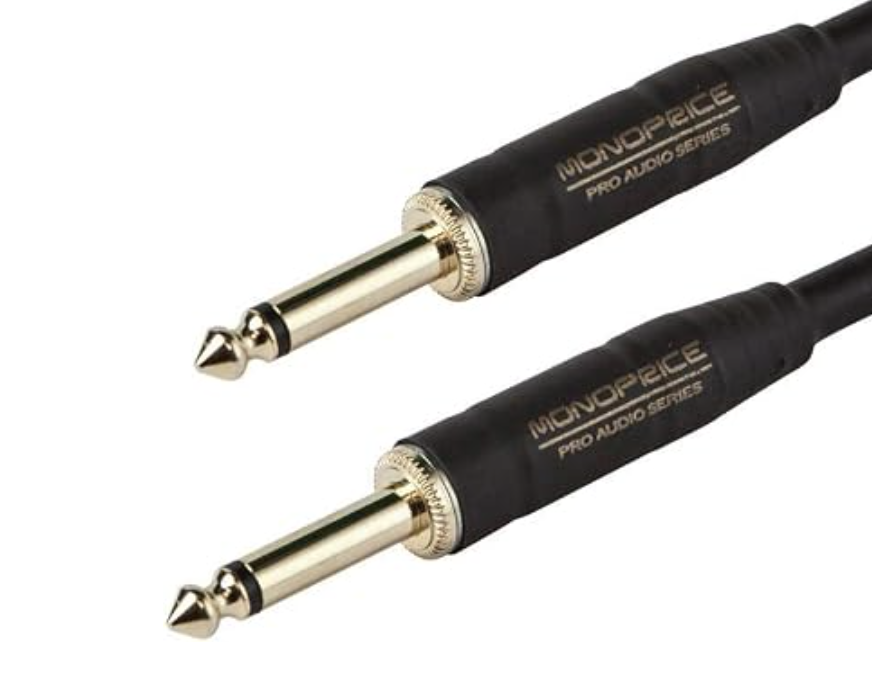
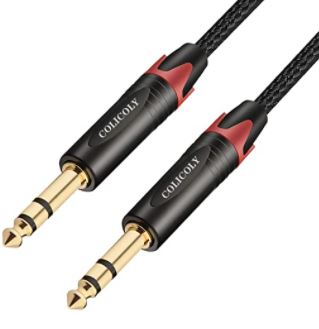
On the topic of volume, most keyboards with mic inputs will often have a gain knob on the back panel right next to the input port to help boost volume, but the PSR-SX620 does NOT. But not to worry, Yamaha has built that gain function into the mic settings. If you press MIC SETTING on the front panel, you’ll see there is a GAIN setting in here as well as the actual relative mic volume setting. The volume defaults to 100 and can go to 127, so if my overall volume isn’t high enough, I like to bump up the gain just a bit from the default of 80 to about 90 before maxing out the main volume – that way I’ve got some room to move up and down using the main volume. You’ll need to play with these settings with your own microphone to see what works best. If I was using a mic cable with a TRS connector, I’d have to max out both these volumes, and it would still be too low to be useful.
In addition to volume adjustments, you can customize your reverb, chorus and panning on this screen. If I move to the SETTING tab, I can also adjust EQ, noise gat and compressor settings. This screen also allows you to switch between VOCAL (for singing) and TALK; if I was to go back to VOCAL and go to the original tab and crank the reverb up, then go back to the SETTING screen and switch from vocal to TALK; you’ll now have SEPARATE reverb, chorus and panning levels for when you’re in TALK mode – this is a super handy feature, but it’s weird that Yamaha has this buried so deep in the menu system instead of having a button the front panel to toggle between VOCAL and TALK settings (you can assign that to a pedal, but I usually need my pedals for sustain, rotary speaker speeds and volume control).
As I mentioned earlier when I was talking about DSP effects, one of the DSP “blocks” is set aside to allow you to add a DSP effect to your mic; you can access that from the mixer/effects screen I mentioned earlier, or if you press DSP on the mic settings screen it takes you to the same place, which is DSP block 7. From here you can choose MIC and then choose any one of the available DSP effects. Now something to note here, is unless you use the SAVE option to save your mic setting as a user setting, you will lose your setting adjustments when you power off the keyboard.
Multi-Pads
The PSR-SX620 has 4 multi-pad buttons that you can use to trigger a melodic phrase or playback of an audio file, and you can choose to loop playback continually until you stop it, or you can have the playback stop after it plays once. You can record and edit MIDI multi-pad files as phrases (and with these you can even have the playback automatically transpose to the current chord being played in the chord detection area), or you can playback an audio file. My PSR-SX720 also has these; I never use these myself in conjunction with rhythm styles, but I still have found them to be handy for that occasional sound effect or phrase that you only need once in a while. This way you can record it and trigger it when you want without having to use up an area on the keyboard for that voice. FYI though; if it’s an actual melodic phrase that needs to be played in time, this will only really be usable if you are playing a style; for me, playing in a band, I can only really use this for quick “one-time” things that don’t need to persist in time with the music. I can’t really dive any deeper into these in this video without adding way too much time to the review, but if you’re interested in these, look for some YouTube videos on them or read up on them in the online manual.
Style Creator
So with the Yamaha PSR-SX620, you can actually edit styles, or even create your OWN! This is a super cool pile of functionality that I honestly don’t know alot about, but I do have to say creating one from scratch is likely to be a colossal amount of work, and will require a fair bit of experience. To access this, press MENU and then on the MENU2 tab, choose the STYLE CREATOR.
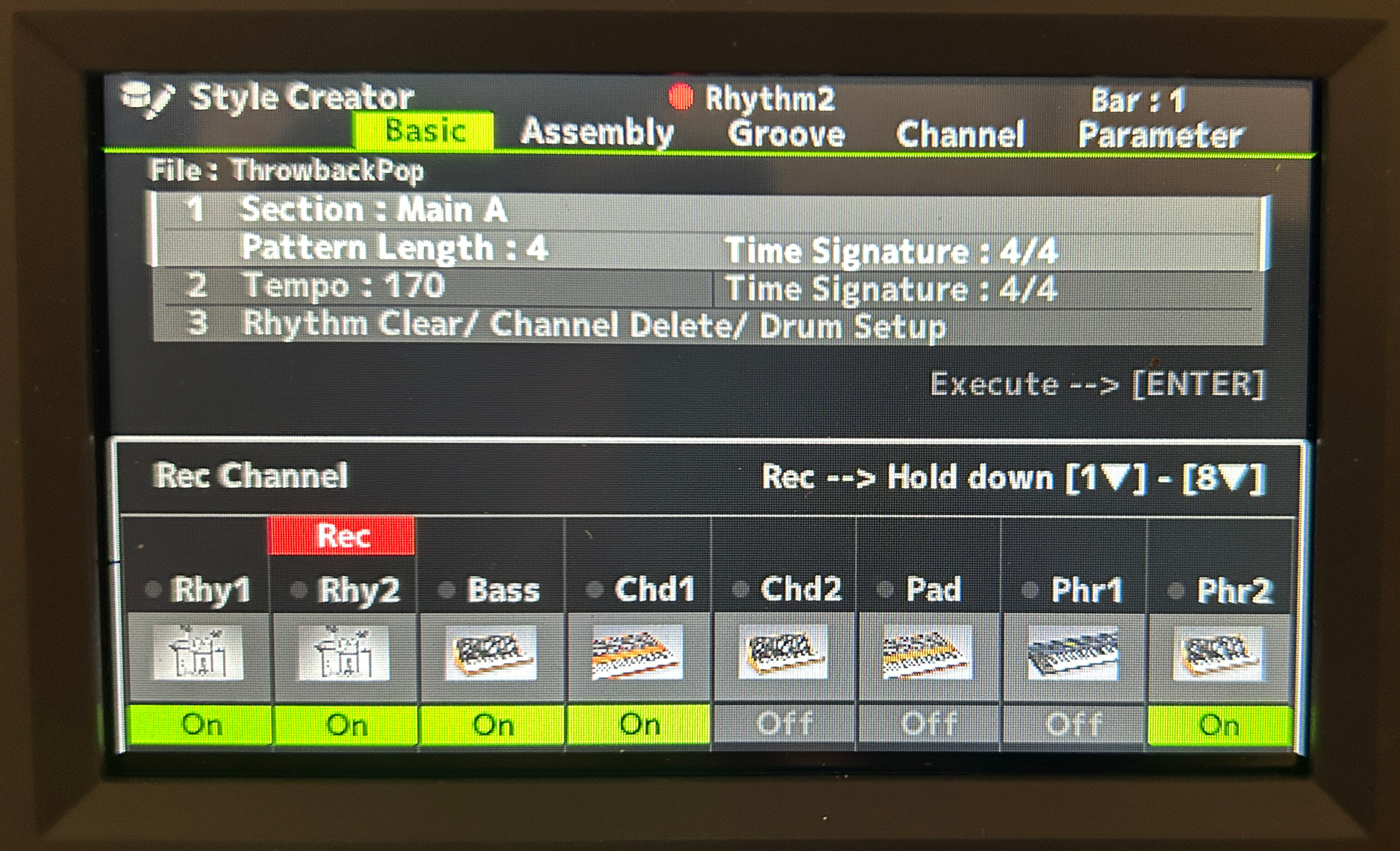
Now while I could never see myself going to the work of creating a style from scratch, I could TOTALLY see myself using this to make simple edits to existing styles. Let’s say there’s a style that is PERFECT for my song, except there’s on instrument in there that I can’t stand; well instead of just muting that during playback (which you can do), I can use the style editor to quickly and EASILY replace that instrument with a different one of my choice, and save it as a user style. Or, let’s say I want the phrase that instrument plays to be a bit different; I can go in and re-record a phrase (and even do some note by note editing to get it perfect) and then save that as a user style. As a quick example, I’ll mute all the style parts so we can hear one clearly; I’ll replace the “Butter Strings” in CHORD1 with a JazzRotary organ – now if I re-enable the other voices, you can hear how it’s now using the organ instead. I could save this as a user style and then call it up when I want to use it. I know, this is a super basic example, but once again – deep diving into this area would add hours to this video, so I’ll leave it to those who are interested to research online and in the manual on your own; but if you are interested in tinkering with styles? The PSR-SX620 can totally do that for you.
What’s Missing?
To be honest, I’m not sure there’s anything SIGNIFICANT that I would describe as “missing” on the PSR-SX620; as with any keyboard, there are always upgrades that would be “cool to have” (like including the organ flute voices found on the PSR-SX720), but additions like that would definitely just drive up the price. The ONLY thing that comes to mind would be to have a “VOCAL / TALK” toggle button to quickly and easily turn your mic effects on or off without having to deep dive into a menu.
Before having rented and tried the SX620, I might have expected to be including a key action upgrade in the “missing” list, but after having spent some time with this action and realizing that it IS upgraded from the PSR-E series? Other than that “VOCAL/TALK” toggle I mentioned? I don’t really have much to talk about here (which is a GOOD thing).
The Competition / Alternatives
To be honest, even though my main keyboard for the past year and a half, my Yamaha PSR-SX720 IS a pro level arranger; I don’t really USE it that way (I’m using it as a stage keyboard), so I’m not at ALL an expert on the “high end arranger” market. That being said, the only keyboards I ever see the Yamaha PSR-SX line compared to would be the Korg PA series. The comparable model price wise to the PSR-SX620 from that line would be the Korg PA300.
Yamaha PSR-SX620 ($1250USD) vs. Korg PA300 ($1200USD)
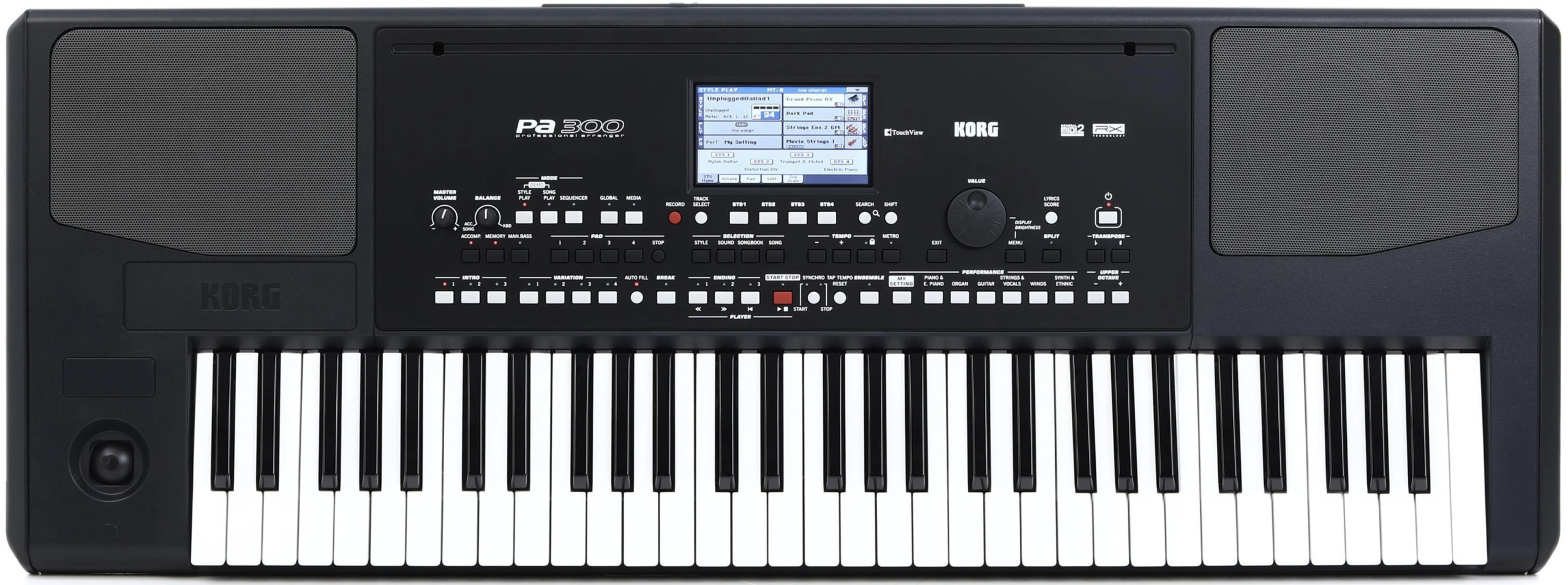
I’ve actually only seen ONE Korg PA series keyboard in person, and it was the Korg PA700, which price-wise (at about $2400 USD), would be the competitor for the Yamaha PSR-SX920 not the SX620; the PA300 is definitely the model that we should be comparing to the PSR-SX620. But to be honest, even though I only spent a few minutes with the PA700 in a store, I wasn’t super impressed with it, even though it’s a VERY expensive model. The sounds were . . . ok, the speakers were powerful, but the touch screen was REALLY low quality; poor resolution and hard to read, which isn’t surprising, because these models came out in 2014 so they’re getting REALLY long in the tooth. And the key action on the PA700, to be honest was no better than my Yamaha PSR-E583, so even without ever seeing a Korg PA300? I know there’s no way I would consider that over a brand new PSR-SX620.
Yamaha PSR-SX620 ($1250USD) vs. Yamaha CK-61 ($1000 USD)
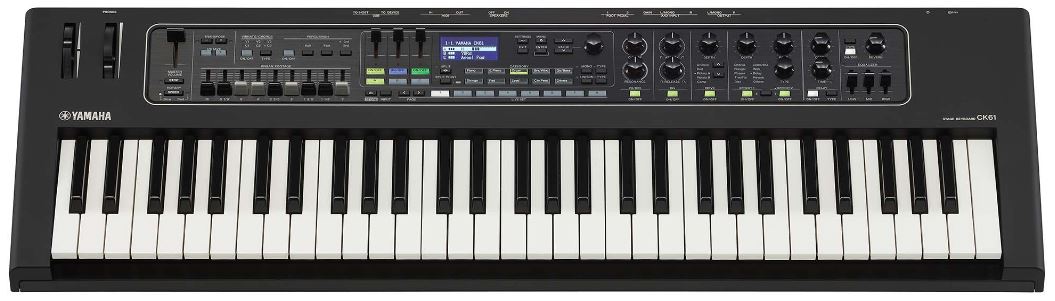
Now this is a super interesting comparison, and it’s one that I feel I AM qualified to make, since I owned a Yamaha CK-61 for quite a while, and really liked that keyboard. Now there are some obvious MAJOR differences here; the CK-61 is a stage keyboard and the PSR-SX620 is an arranger; so . . . if you WANT an arranger keyboard with all the rhythm & accompaniment features, the comparison ends here – get a PSR-SX620. But if you’re like me, and the arranger features are . . . “nice to have” but not mandatory, then the comparison gets alot more interesting.
When I was asked to join a pop rock cover band, I was ABOUT to go pick up another CK-61 until I started considering the PSR-SX line. The main reason I did that was to try and reduce the number of keyboards that I need; since I was used to using my Yamaha DGX-670 for practice at home (because of its arranger features which are great for practice), it occurred to me that maybe I could get a keyboard to fulfill BOTH my stage keyboard and home keyboard needs if it also had those arranger features. So I began looking at the PSR-SX600 (which was close in price to the CK-61), but ended up settling on the PSR-SX720 to get the FSB key action I was already familiar with (from owning a CK-61) as well as the organ flutes engine.
So when you put aside the arranger features, how does the PSR-SX620 compare with the CK-61? To be honest, they each have some significant advantages over the other, so it really depends on your needs. Being a “stage keyboard”, the CK-61 has a ton of direct access physical controls on the front panel to quickly and easily adjust your sounds on the fly (add or configure effects, etc), while the SX620 requires you to deep dive into menus to do the same thing. So if you’re someone who LIKES to do that “on the fly” the CK-61 will be more your speed. Another significant difference is the CK-61 includes a FULL organ engine WITH physical controls (drawbars, rotary speaker switch etc) so if you play alot of organ, the CK-61 is definitely the way to go. And the final BIG difference is the CK-61 has the FSB key action, which is a step up in quality over the PSR-SX620 action.
But the PSR-SX620 has some tricks up its sleeve as well; while the sounds on both keyboards are overall awesome, the SX620 has over FOUR TIMES as many sounds, so that might be a big deal to you. Another advantage the SX620 has are the speakers; the powerful & clear UPWARD facing 30 watt speakers on the SX620 completely blow away the 12 watt downward facing speakers on the CK-61. But the biggest advantage (in my opinion) of the PSR-SX620 is something it shares with my PSR-SX720; an absolutely AMAZING registration memory system combined with the playlist feature. When I bought my SX720, I had no idea how useful that would be – being able to define up to 8 presets for a song that you can call up at the touch of a button, save that under the song name, and then assign and arrange those songs within playlists? I can’t begin to describe how nice that is for a gigging musician. The CK-61 has a more “normal” registration memory system, and it’s fine, but . . . there’s no comparison there.
So would I buy the SX620 over a CK-61? Personally, no I wouldn’t; since I play SO MUCH organ, the actual organ engine with physical drawbars (as well as the upgraded key action) would be too important to me (so I’d choose the CK-61 and live with a lesser registration memory system). But if organ’s not that important, my decision might be different!
Yamaha PSR-SX620 ($1250 USD) vs. Yamaha PSR-SX720+ ($1800 USD)
So what about spending an extra $550 USD to upgrade to the PSR-SX720+? I do actually plan on making a deep dive video comparing these 2 while I have the PSR-SX620 rented, so stay tuned for a deeper dive into this comparison. The SX720+ is clearly a big upgrade, but is it worth THAT much more to you (you could almost buy a PSR-SX620 AND a PSR-E583 for the same amount of money . . .)? There is a lot to consider, but to sum up the MAIN things the SX720 is giving you for that $550 USD:
- touch screen user interface (inherited from the Genos); it’s not only convenient and easier to use, but the workflow is much easier
- upgraded key action – FSB (Future System Basic)
- Organ Flutes (no physical controls like on the CK-61, but you do have on screen drawbars etc – they’re not usable live, but are still a big step up on only having pre-sampled organ voices)
Yamaha PSR-SX620 ($1250 USD) vs. Yamaha PSR-SX600 ($1100 USD)
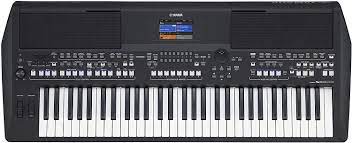
So what about the prior version? I know I haven’t actually tested an SX600 in person, but given that the price difference between it and the SX620 isn’t huge, and the SX620 has seen some significant upgrades in sounds (many are the same as on the PSR-SX720 now instead of the PSR-E583!) & speakers, and the addition of the Chord Looper, BlueTooth audio in, and the push button knob really enhances the workflow . . . to be honest, I wouldn’t bother with an SX600 unless I could find one at a SIGNIFICANT discount.
Yamaha PSR-SX620: THE VERDICT
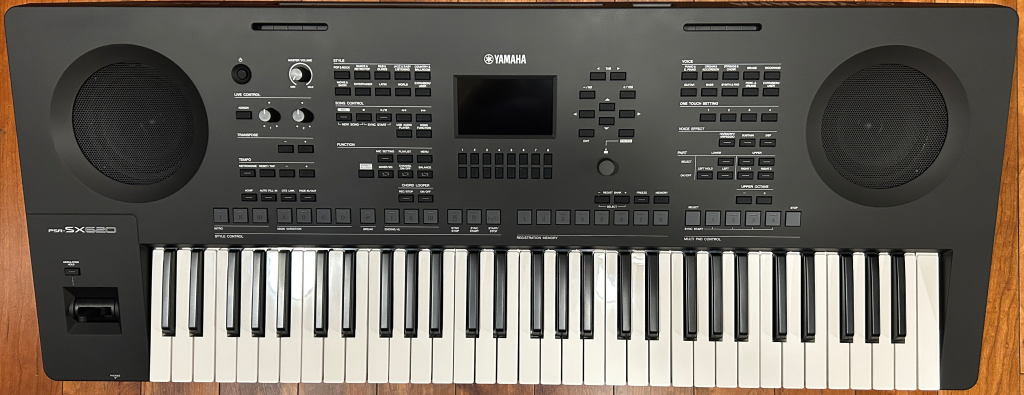
So the verdict on the Yamaha PSR-SX620? Highly recommended, this is an awesome keyboard! If you are an arranger keyboard player, you’re getting some pro arranger features: multiple intros & endings (including a cool fade in/fade out option), 4 variations and all the chord fingering options you could want, and Yamaha’s accompaniment is some of the best (probably THE best) programmed out there. You’ve got a ton of great sounds, a nice clear colour screen, a mic input, a good user interface with lots of direct access controls on the front panel, a fantastic registration memory and playlist system, REALLY good speakers, great connectivity and a key action that’s upgraded from the PSR-E series. And on top of all of that, you have a 16 track MIDI recorder, an audio recorder, the Chord Looper and it only weighs 17 pounds!
So if you want to check out current prices in your area for the Yamaha PSR-SX620 or any of the other accessories or products I talk about in this review, please check out my affiliate links below.
Thanks so much, and happy keyboard playing! (and keyboard shopping 😉 )
I have included links below so that you can check current pricing – please note that as an Amazon Associate I earn from qualifying purchases
Video Version Of This Review
Piano Training I Recommend
I’ve taken a number of online piano courses and tried various piano learning apps; the ones I’m listing here are my favorites and I can highly recommend any of these if you are looking for some online training to get started on learning piano, or to take your current skills to the next level.
Bird’s Piano Academy is one of my absolute favorite online piano programs. Arthur Bird has created multiple courses on getting started learning piano quickly as well as great intro courses on Blues, Jazz and more. And his courses are chord based, so you don’t have to read sheet music which is AWESOME and definitely the fastest way to learn to play modern music. You can go with a subscription that includes ALL his courses, or you can buy individual courses a la carte with LIFETIME access – HIGHLY RECOMMENDED!
If you’re looking for the least expensive way to get started on piano, Pianoforall is a great option. It’s a unique course created by Robin Hall that uses downloadable eBooks with embedded videos and audio instead of a website.
This course is an amazing option for learning piano from beginner up to being able to perform; it teaches multiple genres of music and focuses on how to be a “one person band” on the piano. This course is taught by pro pianist Steve Lungrin – Steve has been teaching and performing his whole adult life and is a fantastic instructor and performer.
I took this course from 2020 to 2021 and it elevated my playing from a very basic level to being able to play songs in multiple genres.
I was super excited when Simply Piano added the “Chords Path” to their super popular piano training app (iOS or Android); this path allows a new student to get started learning piano using a chords based approach (which I HIGHLY recommend over a traditional approach). Learning to play using chords is by far the easiest and fastest way to learn to play modern songs (MINIMAL sightreading ability is needed). I did the entire chords path, and can highly recommend that you check it out (you will get a trial period so why not?)
This is a fantastic option if you are mostly interested in rock music. This course was created and is taught by Marine Lacoste, who is not only a fantastic instructor & pianist, but she is also a very accomplished hammond organ player – she performs regularly with her own band, as well as playing keys regularly for multiple recording artists on tour. I started this course in 2023 when I joined a band, and it is helping me greatly in taking my playing to a new level. And Marine is constantly adding new content, and is very active on the platform.
If you sign up for Online Rock Lessons yearly subscription, use code PIANOTONE at checkout to let Marine know I referred you, and she will give you some free bonuses!

This is a fantastic (but pretty unique) online program for taking your piano and organ playing skills to the next level, developed by pro piano, keyboard & Hammond organ player Mike Little. Mike shares tips & tricks accumulated from over 30 years of pro touring, gigging, studio & production experiences. This course isn’t for a COMPLETE beginner, but you don’t have to be a super accomplished player either, to get TONS of value from this program!

Ultimate Piano isn’t an actual course to learn how to play, but it IS a really helpful TOOL for piano students. You connect your keyboard to your computer, go to Ultimate Piano’s website (so NOTHING to install!) and you have a ton of helpful training and exercises at your disposal, as well as built in piano sounds. With the help of on screen light up keys, you can learn and practice scales, chords and even ear training and you can play along with MIDI or audio files, and even YouTube videos to practice songs!